Using a dialer with receeve
Manage calls from receeve
- Please note that there's integration work to be done prior to the steps we're describing below Check with your Sol Con/Account Manager if you're interested in receiving/making calls from receeve.
- With our current set up you will need a dialer seat associated to your email account.
1. Activating the dialer
You can activate the dialer for specific roles:
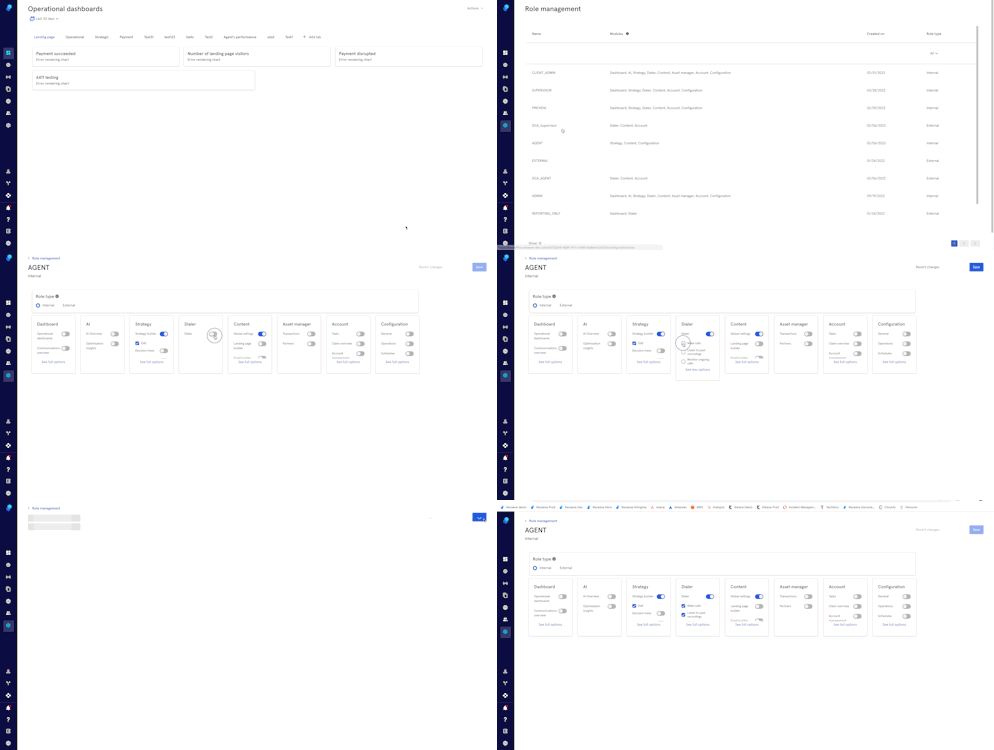
- Go to Configuration>Role management
- Choose a role (in this case, Agent)
- Toggle on the dialer (all the roles have this option)
- Click on the checkbox to:
a. Make calls
b. Listen to past recordings
c. Monitor ongoing calls
- Click 'Save'
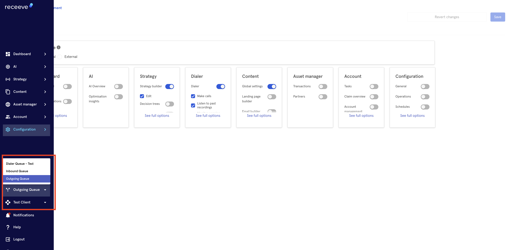
2. Choose the queue you'll be working on
While this is fully customizable, here you have an example of:
- Inbound calls
- Outbound calls
- Predictive calls (as per the parameters added to the dialer)
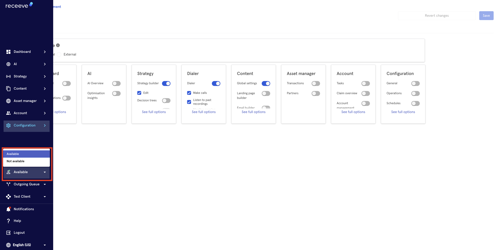
3. Availability
Click on available/not available to start making/receiving calls. It takes a few seconds to see the status change.
Example: Making an outbound call
Let's make an outbound call (You'll need to be available and in the outbound queue)
- Go to Account>Account Management and look up for the account
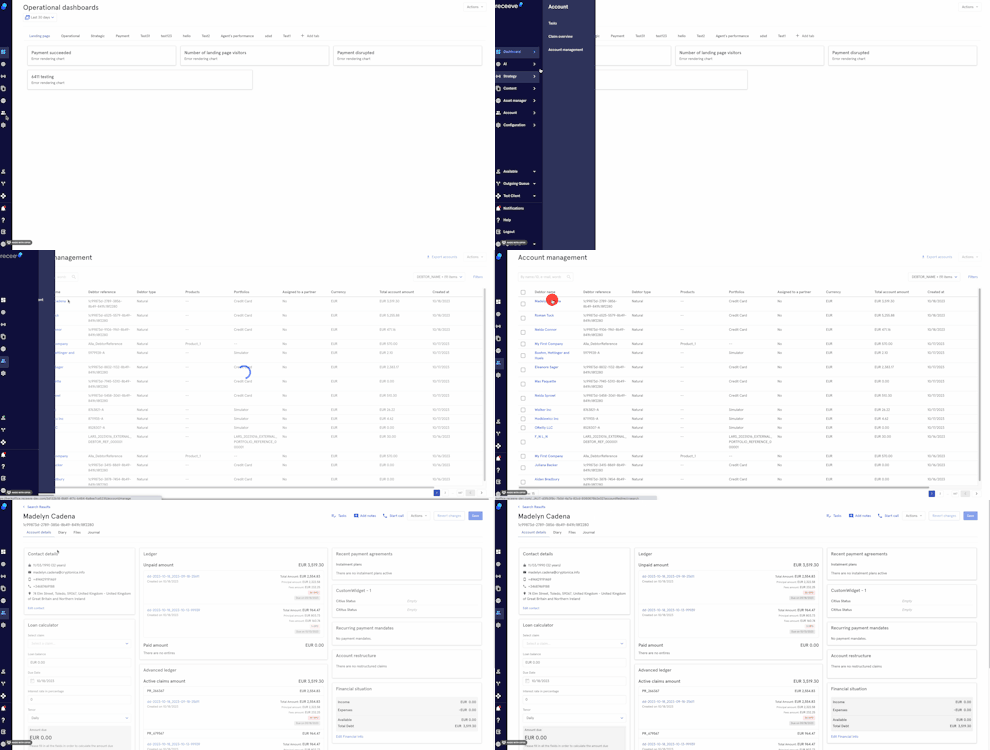
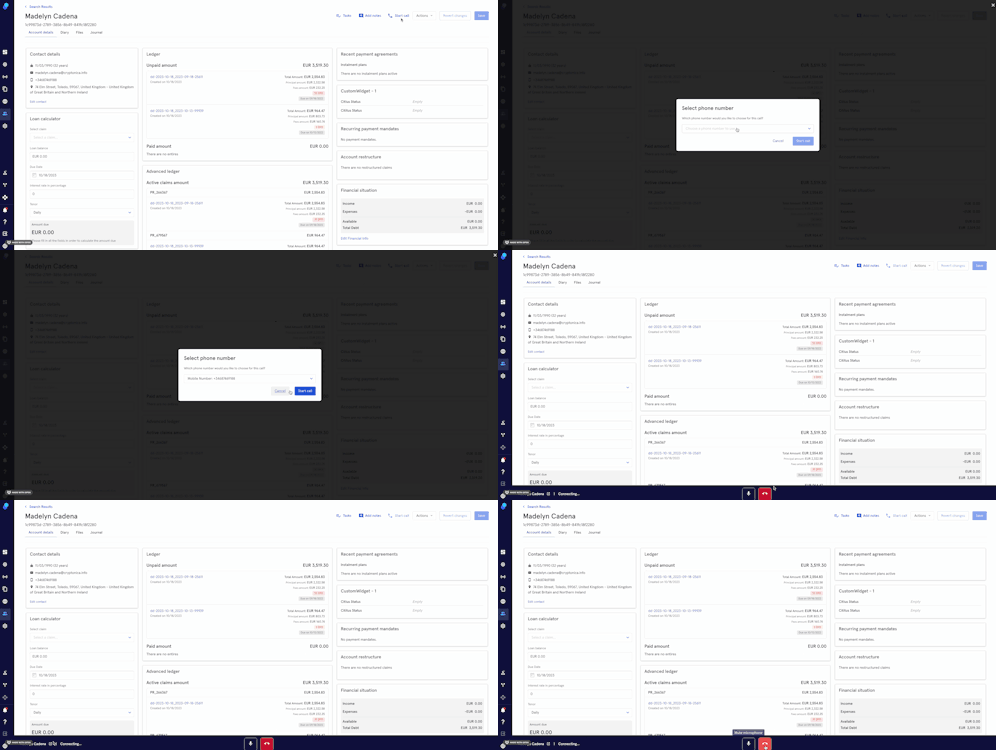
- Click on 'Start call'. This option will be greyed out for agents in an inbound/predictive dialer queue.
- Select phone number
- Click on 'start call'
- At the bottom of your screen you'll see a banner that will allow you to either end the call or mute the microphone. You can also open the account from here (in this case you're making an outbound call so it is already open but this link will be useful when receiving calls).
- Add a Call Resolution. The fields in the dropdown can be customized according to your needs.
