Configuration - Queues
Queue Configuration
To configure queues and groups, go to Configuration in the main menu. Under Configuration, click Queues.
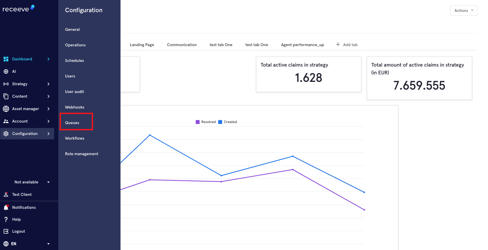
We'll find here the Queues list and the Groups list as well as the Create Queue and Create Group buttons.
Before we start checking the different options here, let's keep in mind that group will always be a less specific cluster of users while a queue will always be more specific. For example, You have the Supervisors-Germany group (all the supervisors) and within the group there's the Supervisors-Berlin queue and the Supervisors-Hamburg queue. Hence, a queue will always belong to a group.
Queues List
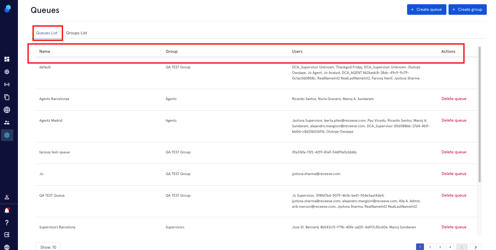
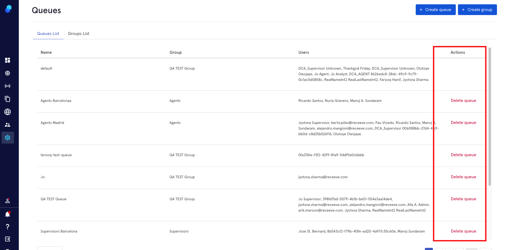
The Queues List tab displays 4 columns with the following information: Name, Group, Users and Actions.
Create Queue
To create a queue:
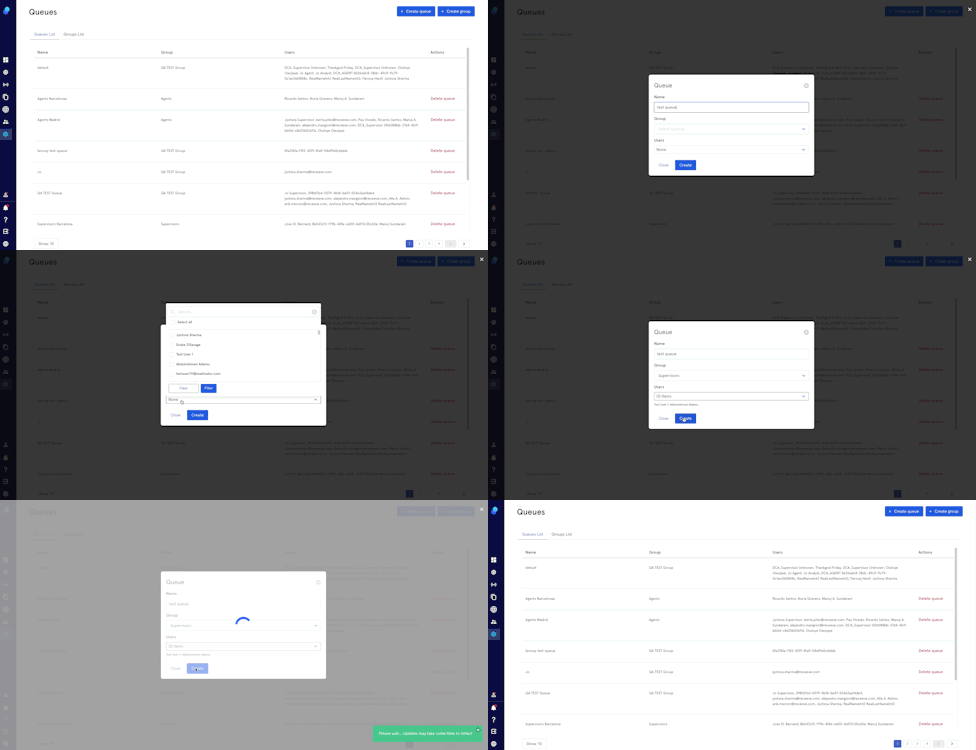
- Click on the Create Queue button (top right)
- Upon clicking Create Queue, you will see a popup where you can fill in the name of the queue, select a group, and assign users to your queue. Please note that a queue needs to belong to a group.
- Click Create to proceed or Close to cancel.
Delete Queue
To delete a queue click, look for the queue name and click on 'Delete' under the column Actions.
Groups List
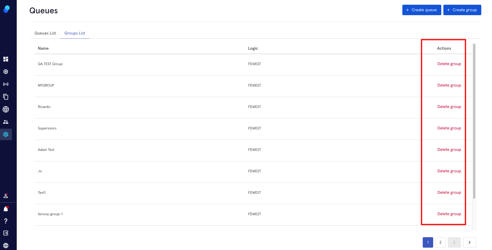
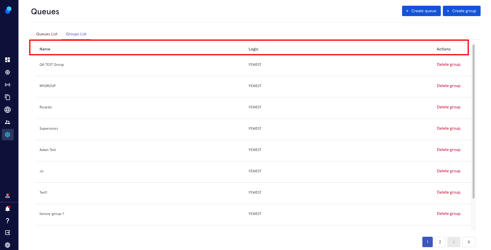
In the groups list you'll find 3 columns: Name, Logic and Actions. Please note the logic will always be fewest.
Create Group
To add a new group:
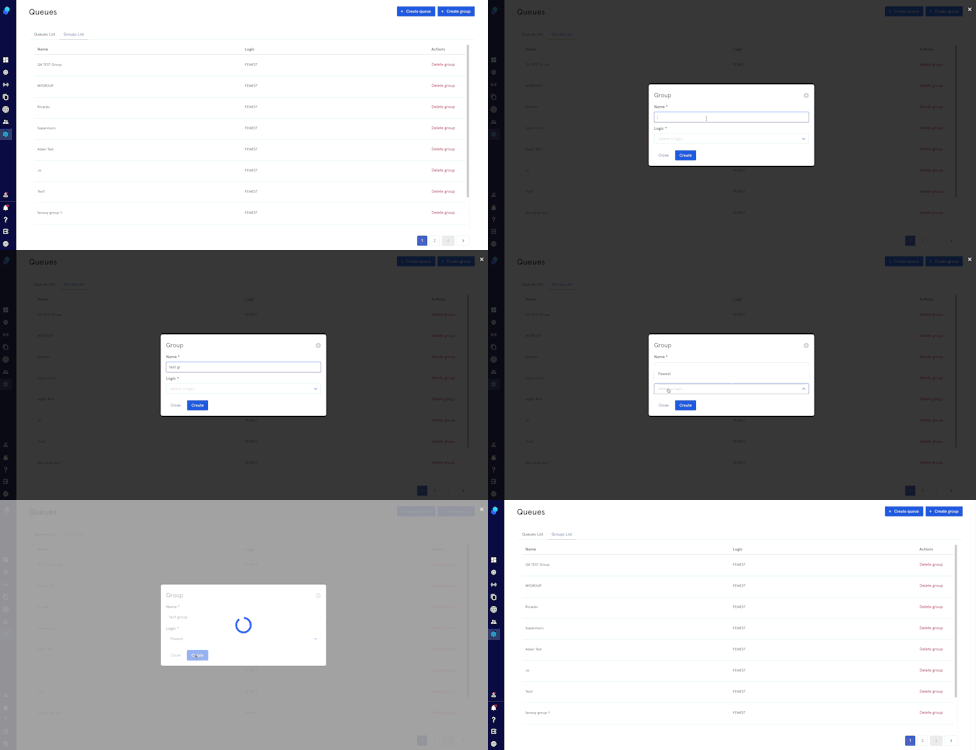
- Click on the Create Group button at the top right corner of the page.
- Upon clicking Create Group, you will see a popup where you can fill in the Name and select a logic for your group.
- Click Create to proceed or Close to cancel.
Delete Group
To delete a group:
- Look for the specific group ('Name' column)
- Click on 'Delete' under the column Actions.