Configuration - role Management
Define role-specific access and actions within receeve
Let's say you want your agents to see only the Account Manager, or your supervisors to be able to edit the strategy. You can use the Role Management feature to achieve this type of configuration.
This option will only be available to client admin roles and other groups you've chosen to have this feature enabled. If you're a client admin and do not see it, please contact us.
The roles
There are several default roles. These are their access rules which you can change by using the toggle next to the feature name:
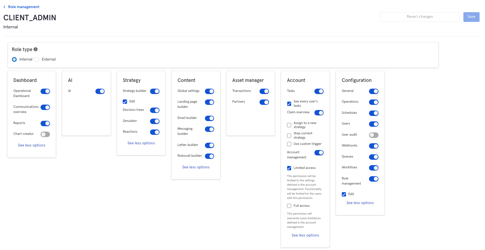
Client admin
These users administrate the app.
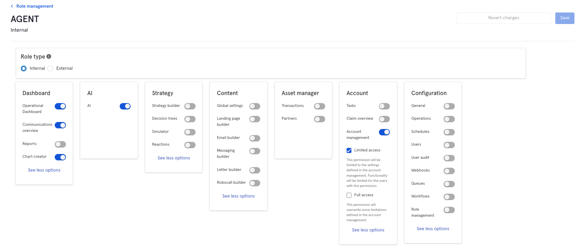
Agent
The users will handle day-to-day activities and communications.
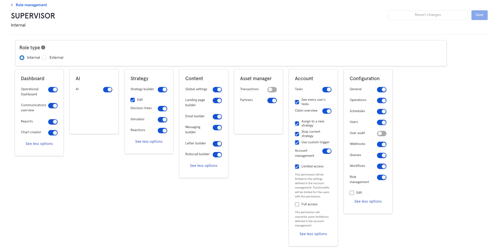
Supervisor
These users handle and supervise all agents and their activities.
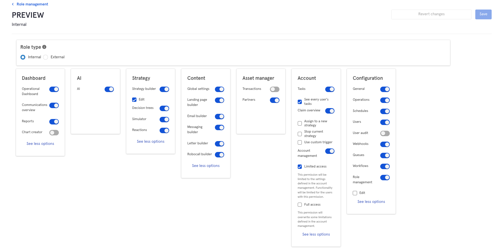
Preview
The users under this role will be able to view sections but they won't be able to make change.
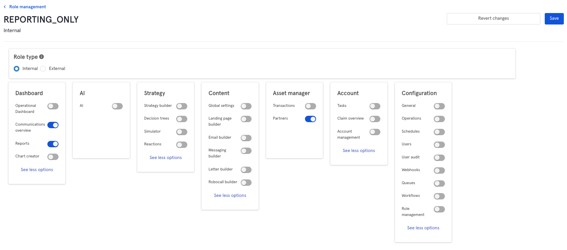
Report only
These users will be able to view Dashboards and Reports:
Analyst
These users will be able to view Dashboards and Reports. They can also analyze Strategies or the Content being sent to Debtors.
How to configure the feature
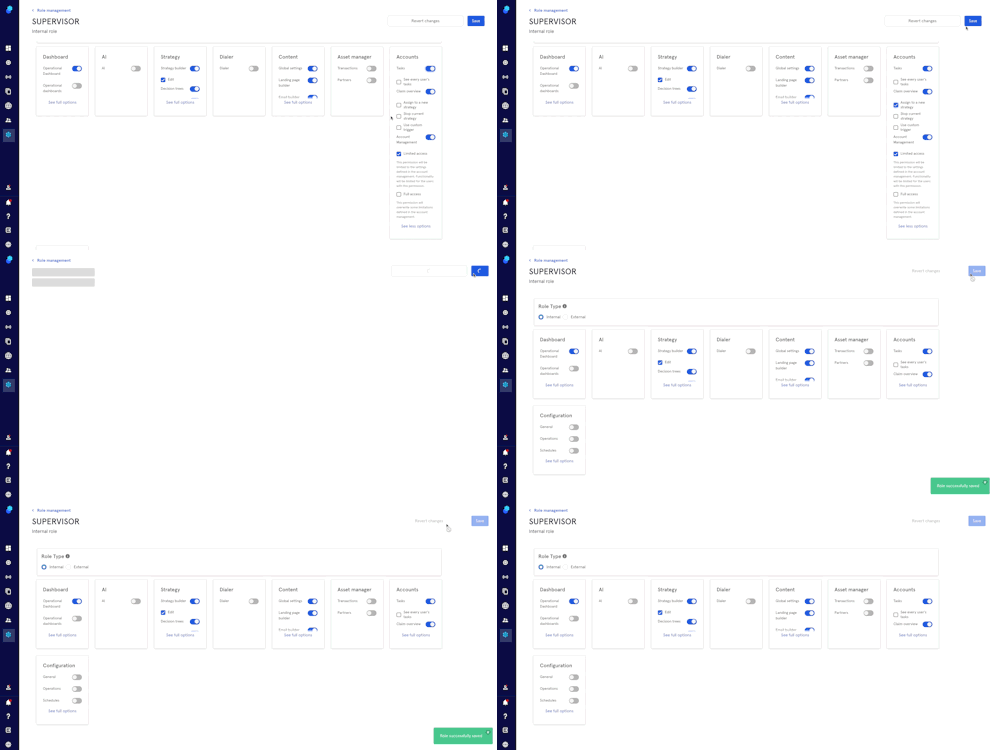
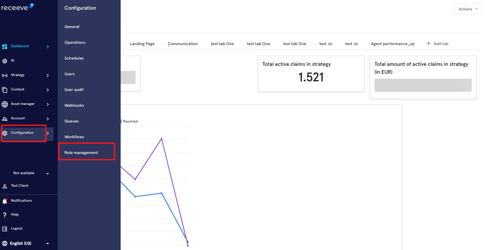
- To access the feature click Configuration>Role Management.
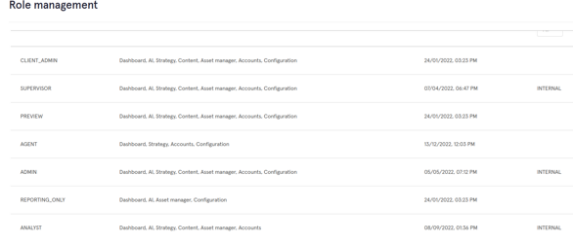
- You'll find the list with the different roles and 4 columns:
Name: Name of the role
Modules: The features and modules that are active within the role.
Role type: Internal/External. The role is for users within your company or external users respectively.
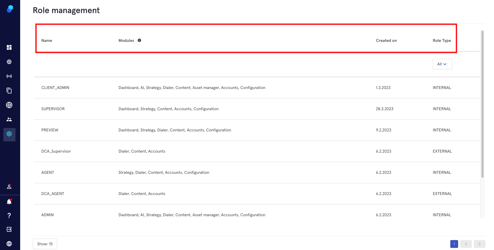
- To change the access to features for a specific role, click on the role. For the purpose of this example we'll be clicking on 'supervisor'.
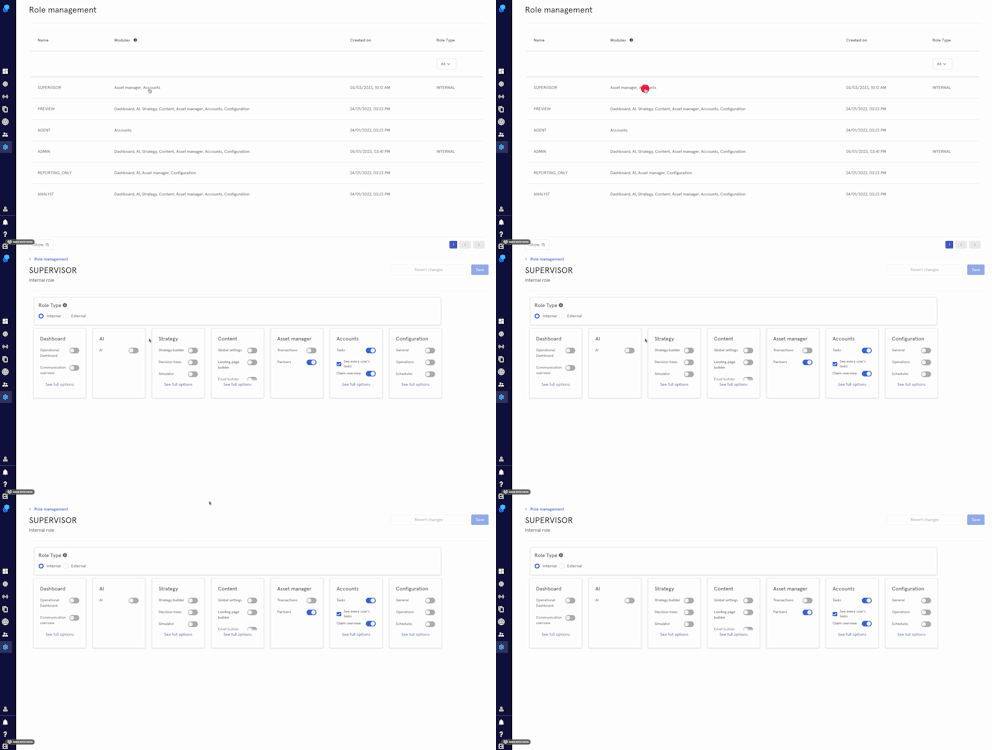
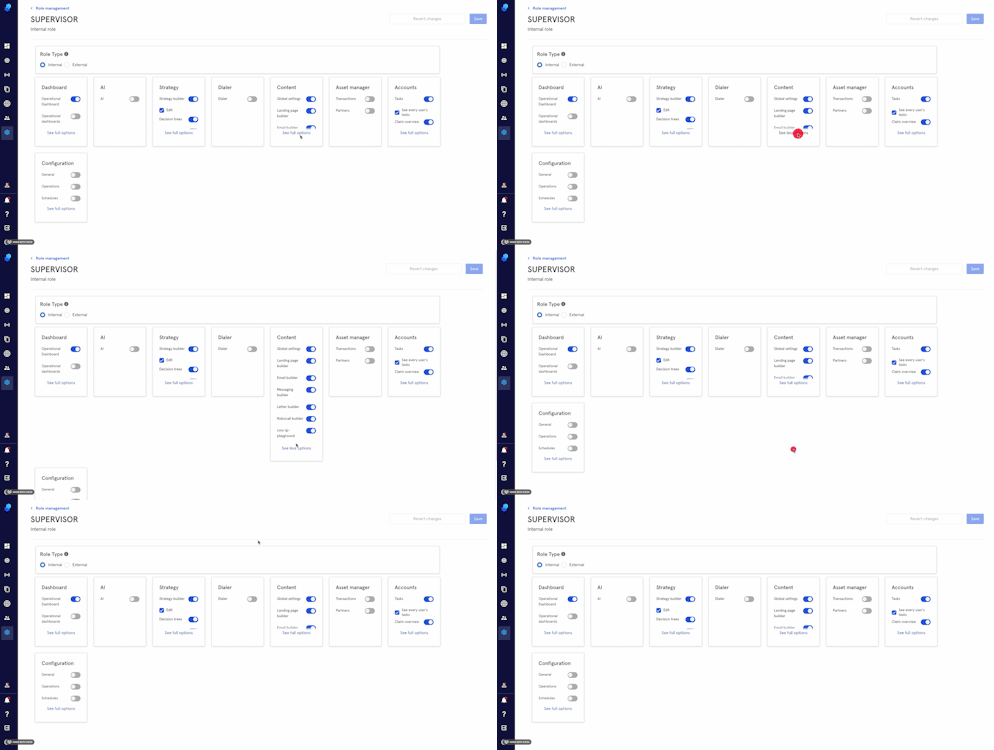
- Here you'll find the different modules and the options you can activate/deactivate within each module. Click on 'see full options' to see the full list within each feature.
Let's check for example, all the available options within Accounts. In this case you'll find check boxes as well:
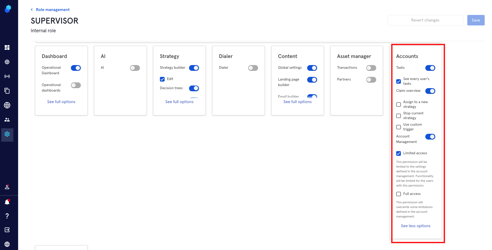
- Now let's change the settings using the toggle/check boxes.
- Click on 'save' on the top right to save the changes.