Email Builder Basics
The basic structure
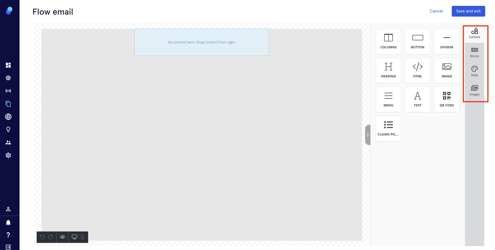
Receeve's drag and drop Email Builder is composed of 4 big components:
- Blocks;
- Content components
- Email body settings
- Images
Blocks
They are the 'building blocks' of the email structure. A block always has 1 row which contains 1 or more columns in it.
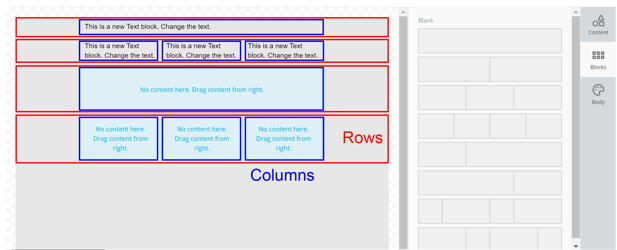
To add it, click "Blocks" on the right sidebar and drag and drop the row with the number of columns you desire:
Changing the background color and other settings of rows and columns
You can define rows and columns background color, spacing and other settings in the row settings.
To access the row settings, hover with your mouse cursor outside of the content area of a row and click it:
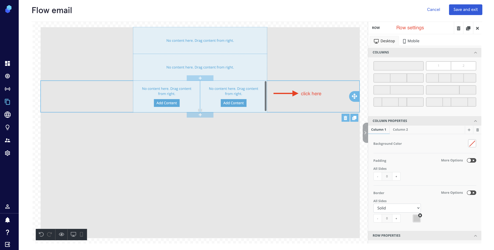
This will open the row settings on the sidebar on the right, where you can:
- Change the number of columns in the row

- Change each individual column settings
Click on the column you want to change and configure background color, padding, border type, width and color:

- Change the entire row settings
You can change the background color (both of all the row or just the content part of the row), add a background image or set the padding.

Content components
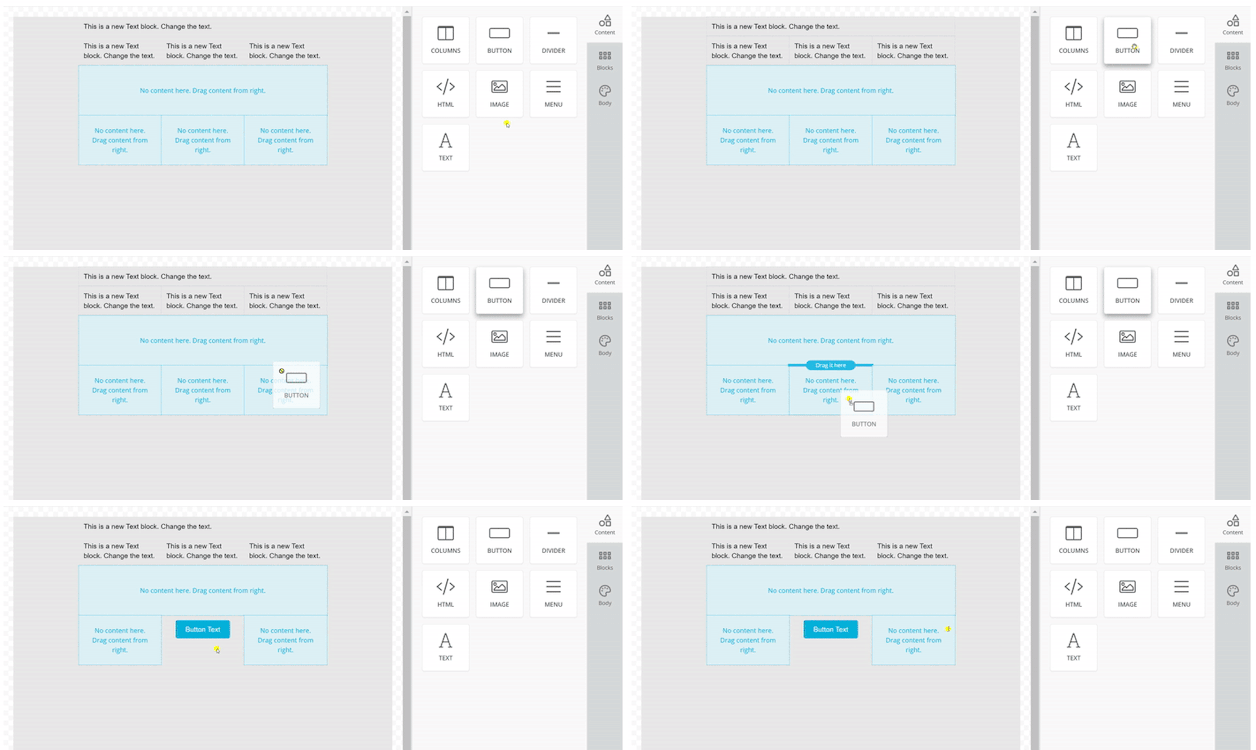
You can drag and drop components into columns. To change them, just click the component and edit it.
Email body settings
Instead of changing individual configurations in each component, you can define a default style for the whole email. Click "Body" on the bar on the right and you can select the background color, how wide the email is in pixels, the default font and the colors of links and if they are underlined:
