File Upload Use Case
This page describes how to upload files to the system. To learn more about the specific requirements and how to subscribe, please refer to the Related Pages section.
Requirements
Before uploading a file, you need to obtain an authorization token. This token should be included in the Authorization header when making the request.
You should have your accountId ready, as well as the file you intend to upload.
How to Upload the File
Before uploading the file, ensure you have gathered the necessary information such as the accountId and the file itself.
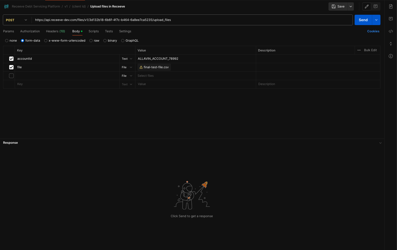
You will be using a POST request to the following base URL:
{baseURL}/files/v1/{clientId}/upload_files
Where clientId is your unique identifier within the system. The request should be in multipart/form-data format.
Example using NodeJS and Axios
Here is an example demonstrating how to upload a file using NodeJS and Axios:
const axios = require('axios');
const fs = require('fs');
const FormData = require('form-data');

// Function to obtain the authorization token (implementation may vary)
async function getAuthToken() {
  // Implement token retrieval logic here...
  // For the purpose of this example, we'll assume the token is already obtained.
  return 'your-authorization-token';
}

const clientId = 'your-client-id';
const accountId = 'your-account-id'; // Replace with your actual accountId
const filePath = './path/to/your/file.ext'; // Replace with the path to your file

(async () => {
  try {
    const token = await getAuthToken();
    const form = new FormData();

    form.append('accountId', accountId);
    form.append('file', fs.createReadStream(filePath));

    const url = `https://yourdomain.com/files/v1/${clientId}/upload_files`;

    const response = await axios.post(url, form, {
      headers: {
        ...form.getHeaders(),
        'Authorization': token, // Including the authorization token
      },
    });

    console.log('File uploaded successfully:', response.data);
  } catch (error) {
    console.error('Error uploading file:', error);
  }
})();
Example Using Postman
Upload File With Document Type:
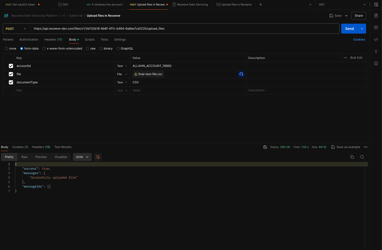
The API also supports uploading files with document types. The document types which are supported are as follows , which are also the same in BackofficeSPA. If any other type is provided the document will be uploaded but the type will not be set.
- Invoice
- CSV
- Document
Example using NodeJS and Axios
Here is an example demonstrating how to upload a file using NodeJS and Axios:
const axios = require('axios');
const fs = require('fs');
const FormData = require('form-data');

// Function to obtain the authorization token (implementation may vary)
async function getAuthToken() {
  // Implement token retrieval logic here...
  // For the purpose of this example, we'll assume the token is already obtained.
  return 'your-authorization-token';
}

const clientId = 'your-client-id';
const accountId = 'your-account-id'; // Replace with your actual accountId
const filePath = './path/to/your/file.ext'; // Replace with the path to your file
const documentType = 'CSV';

(async () => {
  try {
    const token = await getAuthToken();
    const form = new FormData();

    form.append('accountId', accountId);
    form.append('file', fs.createReadStream(filePath));
    form.append('documentType', documentType);

    const url = `https://yourdomain.com/files/v1/${clientId}/upload_files`;

    const response = await axios.post(url, form, {
      headers: {
        ...form.getHeaders(),
        'Authorization': token, // Including the authorization token
      },
    });

    console.log('File uploaded successfully:', response.data);
  } catch (error) {
    console.error('Error uploading file:', error);
  }
})();
Example Using Postman
Notes
- Ensure the file path is correct.
- Ensure that only one file is provided in a single request otherwise the api will throw error.
- Handle errors appropriately to troubleshoot issues during the file upload process.
- Always verify that the accountId is accurate and authorized to perform the file upload.