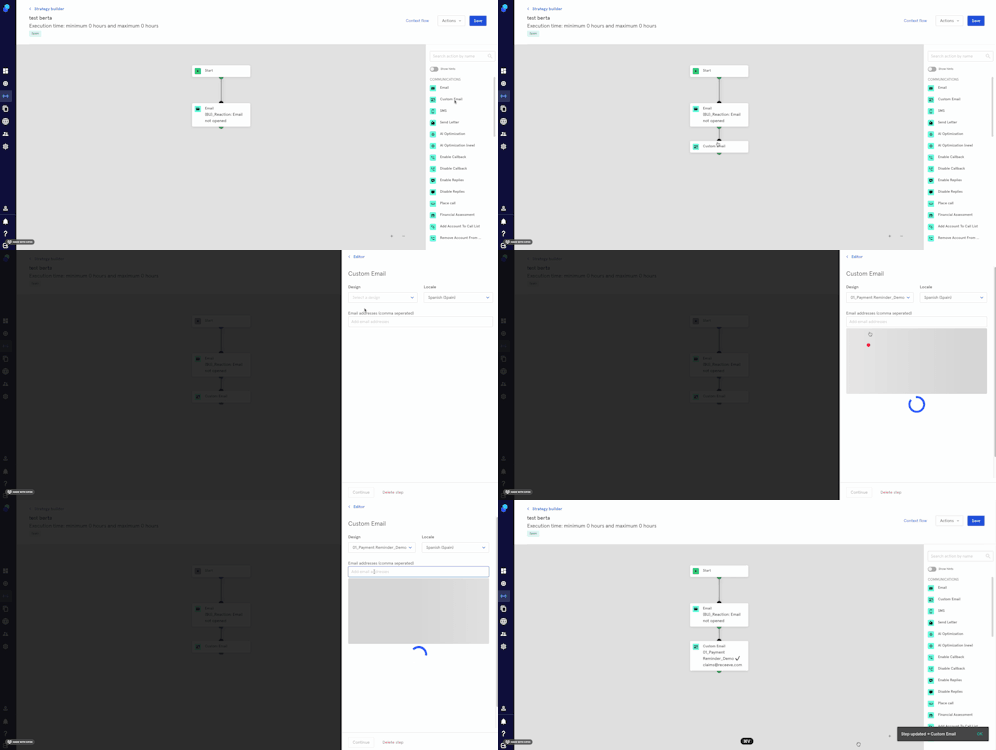
Step: Custom email
This step will allow you to send an email of your choice to a specific email address.
Example: We want to notify an internal team of specific claims going through a specific strategy. We can use the 'Custom email' step for that purpose.
Creating the step
To start, click Strategy from the menu and then proceed to Strategy Builder.
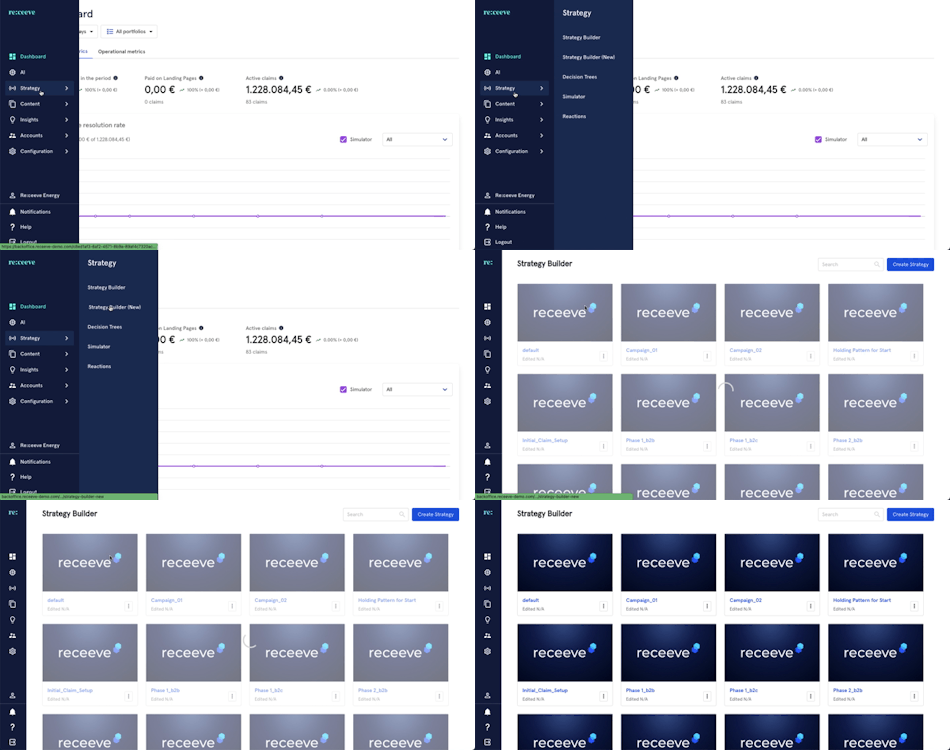
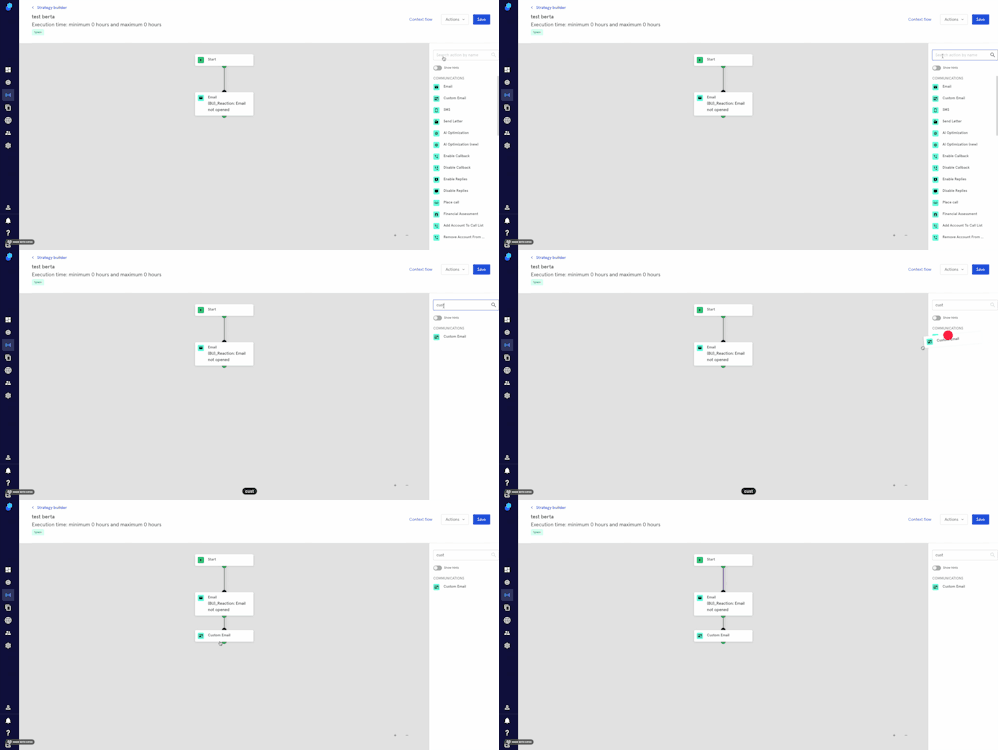
On the step library, locate the 'Custom email' step under the Communications section (Green) and then drag it to your strategy. You may also look for the step by typing in the Search box.
Custom email
- Click on the step; a modal will appear on the right side of your screen.
- Select design and locale (you'll need to create the email in the email builder).
- Add the email address or addresses that will receive this email.
- Optional: If you click on the email, it will open in a new tab allowing you to edit it.
- Click on 'Continue' to proceed or click on 'Delete step' to delete it.
Example
I'm sending a custom email to an internal team because I want this team to be notified of claims entering this specific strategy.
Please note the difference between the 'email' step that will send an email to your customers and the 'custom email' step that will, in this case, send an email to an internal team. In both cases you'll need to create the content in the email builder first.