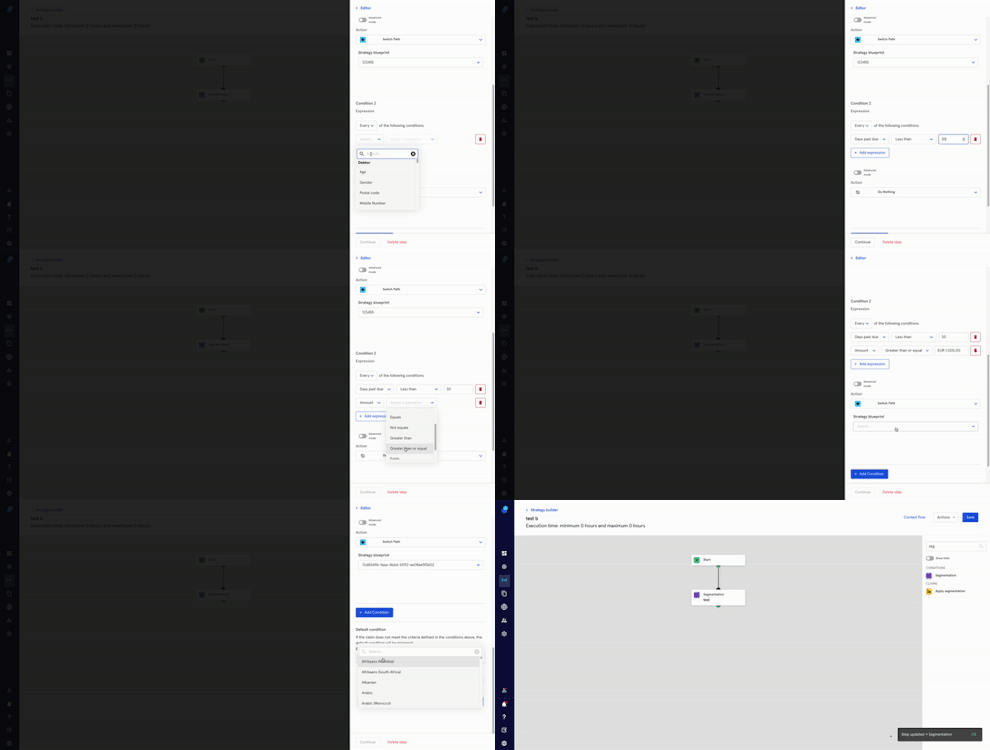
Step: Segmentation
The segmentation step will allow you to combine conditions and execute specific actions.
You can use this step to segment claims that belong to a specific portfolio and perform certain actions on them.
Creating the step
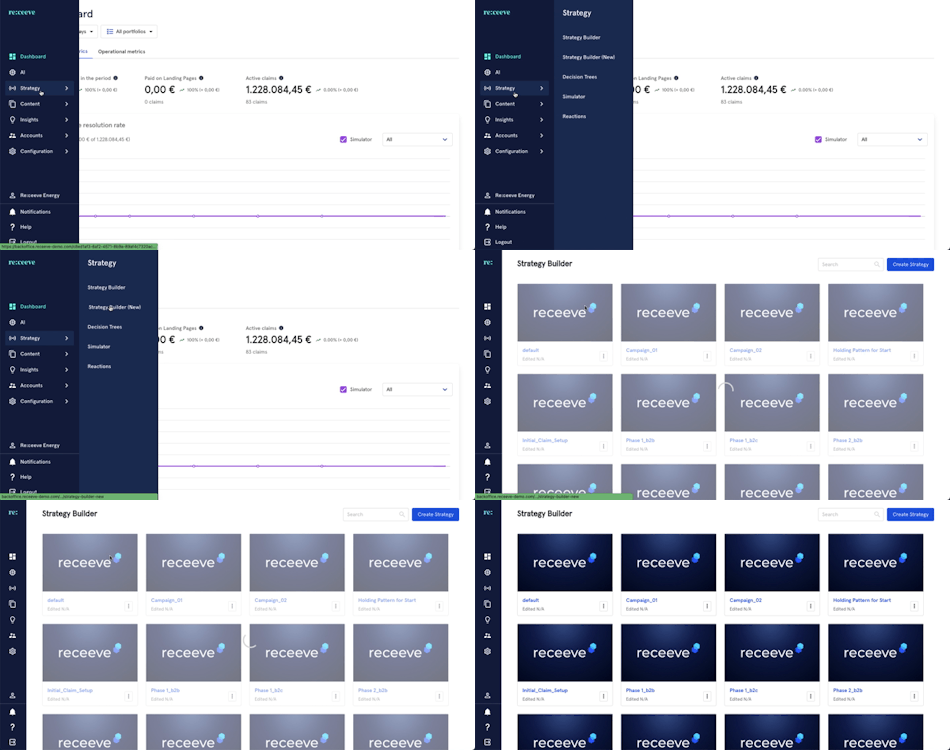
To start, click Strategy from the menu and then proceed to Strategy Builder.
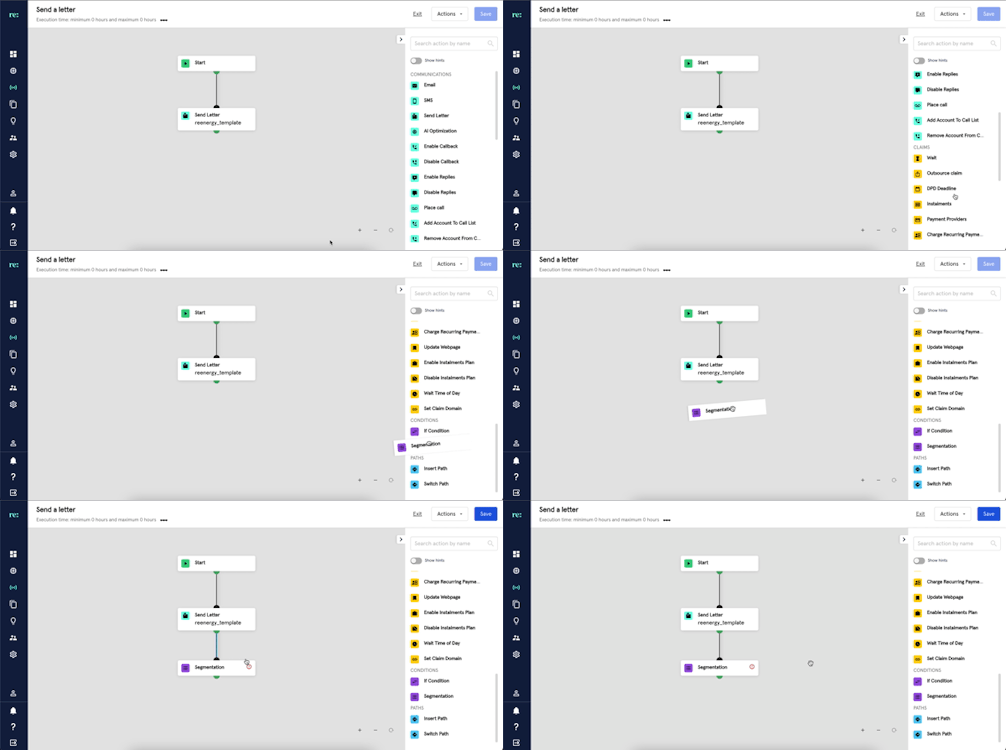
On the step library, locate the Segmentation step under the Conditions section (Purple) and then drag it to your strategy.
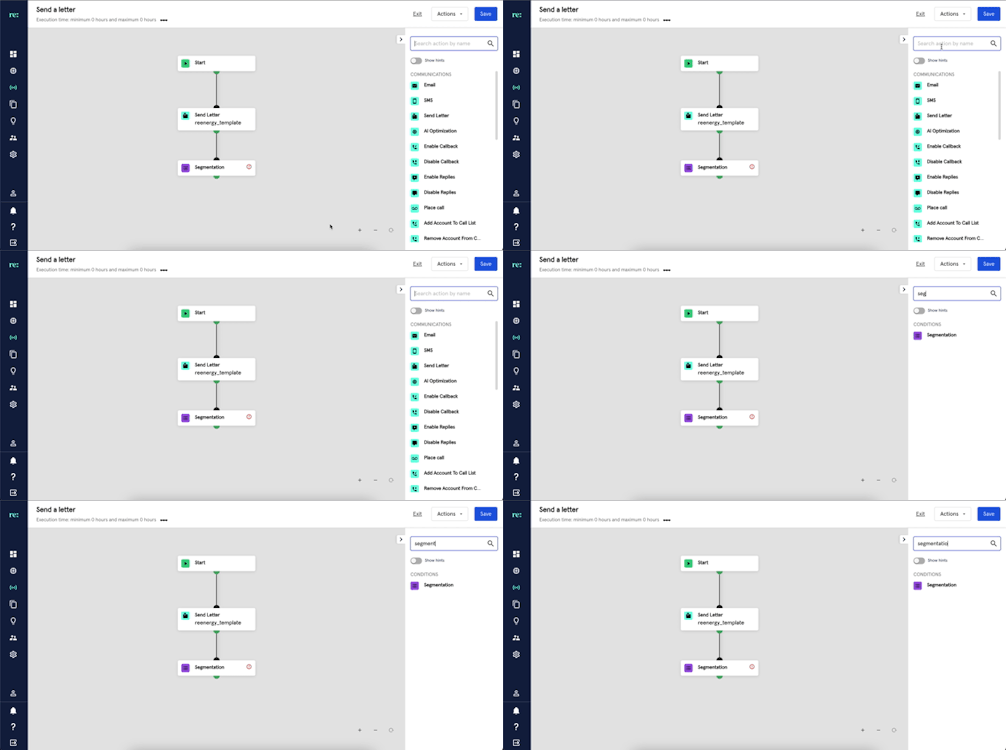
You may also look for Segmentation by typing in the Search box.
Adding Conditions
To start adding conditions:
- Click on the ‘Segmentation’ step in the Strategy Builder.
- Add a description that helps you identify the segmentation you're creating.
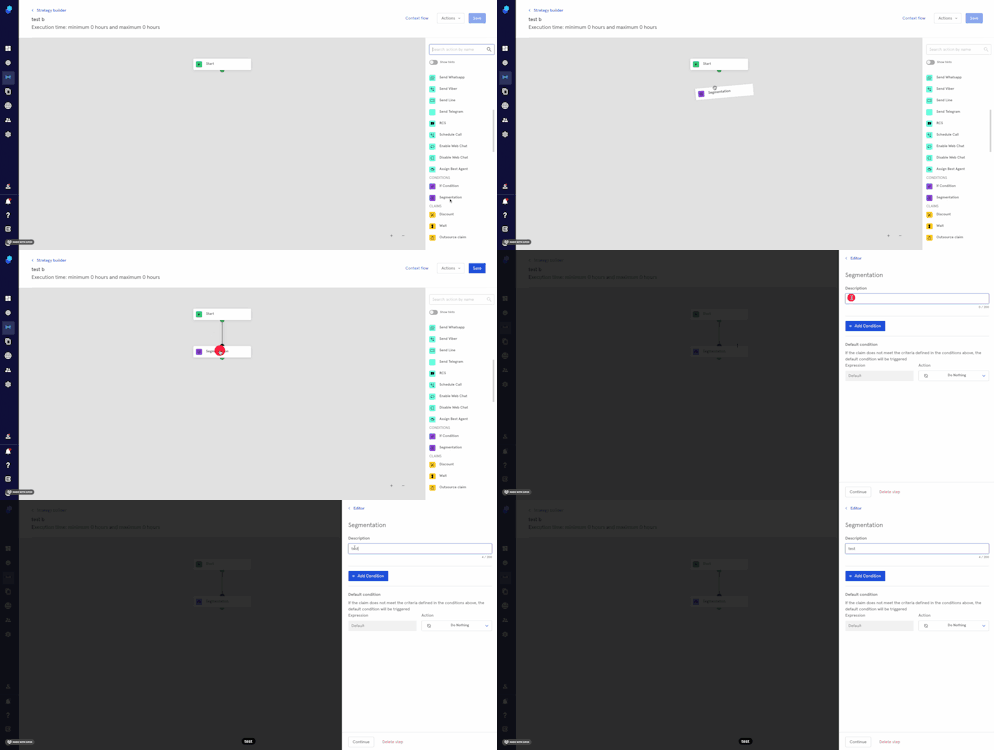
- Start adding conditions by clicking on the 'Add condition' button. We can start filling in our Condition 1:
- Expression
- Choose which conditions have to be fulfilled from the dropdown: every (all the expressions need to be satisfied) or any (any of the expressions need to be satisfied).
- Now add an expression (It can be related to the claim, the debtor etc) and an operation. Please note that depending on what you choose in the first dropdown, you will have to make specific selections in the subsequent dropdowns.
- You can add more expression if you'd like by clicking on the 'Add Expression' button.
- You can delete expression by clicking on the trash icon.
- Alternatively there's an advanced mode toggle. Please check the supported variables here. Please note that if you toggle to advanced mode after filling the dropdowns, you'll lose the information.
- Expression
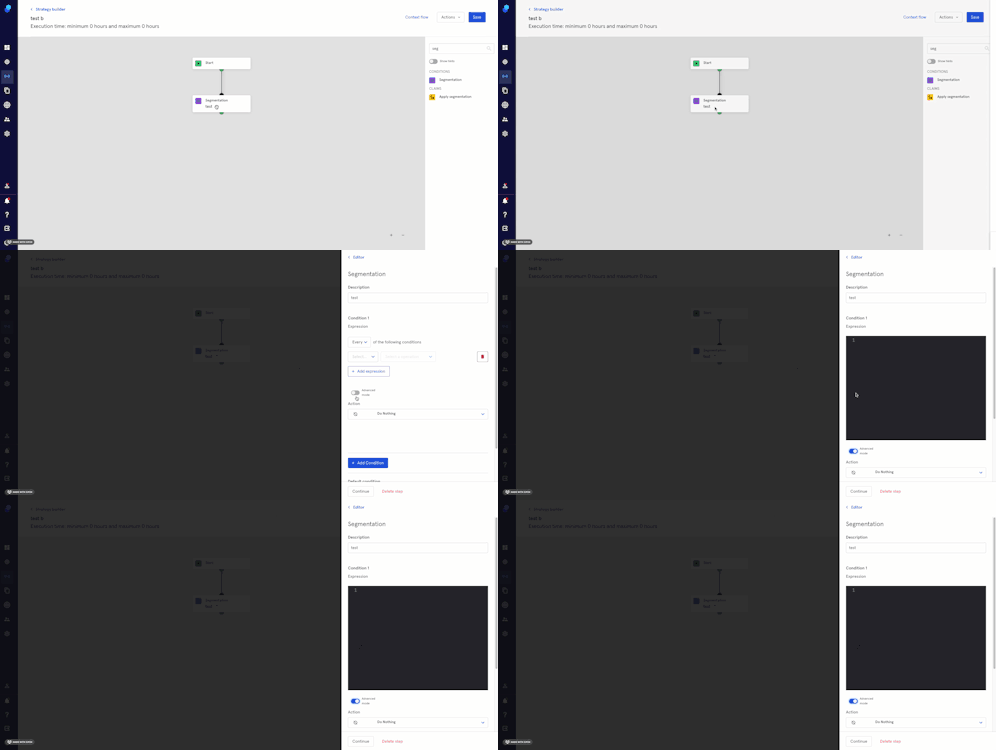
-
- Action Choose an action from the dropdown
- Click on 'Add condition' if you want to add more conditions (optional)
- Default condition
If the claim does not meet the criteria defined in the conditions above, the default condition will be triggered.
- The Expression here will always be default
- Choose an Action from the dropdown.
- Click on 'Continue' to save the step or click on 'Delete step' to delete it.
Please note that the system works like a waterfall: if the first condition is true, it will be executed and the system will move the the next condition. If the condition is false or not applicable the system does not execute it but keeps on moving to the next condition.
Example
We're currently working with one portfolio and want to segment our claims as follows:
- Condition 1: We'll be sending claims that are 30 DPD (days past due) and equal or over 1000 € to a different strategy/path. This is how it would look:
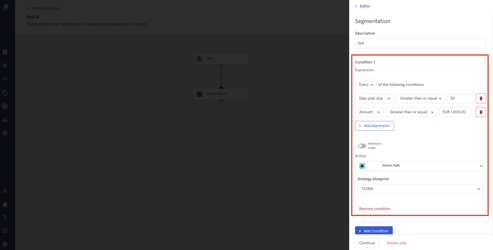
- Condition 2: Claims under 30 DPD and equal or over 1000 € to another path strategy/path.
- Claims not fulfilling these conditions (under 1000 €, no matter what their DPD is) will receive an SMS, so that will be the action for the default condition. Please note we'll choose the appropriate content and locale.
- We save our segmentation step by clicking on 'Continue'