Step Type: AI Optimization
This step type allows you to create a variety of options that are then optimised by the AI. This is how it works:
Scenario 1: Winner Takes All
You create 10 options for messaging that you would like to try (5 emails and 5 SMS). You are sending 1000 claims per month into the platform and you would like to give the algorithm a bit of time to sort out which option is best. So you decide to let the AI try for the entire month. After that month is over, the AI has determined which communication works best and you have decided that you don't want to check on the other options. The winner is the winner. The AI will now send the winning content to all claims once they go through the step.
Scenario 2: Continue to Adapt
You take the same 10 options from above for messaging that you would like to try (5 emails and 5 SMS). You are still sending 1000 claims per month into the platform and you would like to give the algorithm a bit of time to sort out which option is best. So you decide to let the AI try for the entire month. After that month is over, the AI has determined which step works best and this time you would like to leave a little bit of room so the AI can keep track of whether a different option starts to perform better. You allow the AI to use the other options about 5% of the time for example. If over time there is a shift, and now a different option starts to perform better, the AI will then move towards that option. It will continue to do this over and over again.
Creating the Step
This step is more complex than other steps; let's walk through the options.
1. Test for.
Here you can set up for how long you'll be running the test (days/hours). You want to give this step a little bit of time to test as cleanly as possible.
Please note that testing will stop strategy execution for the period of time specified. ie: if you're testing for 7 days, the next step in your strategy will only be executed after this period.
2. Channel options
You need to select at least two communication channels for your testing. For example, you can test an SMS vs an Email to see which content brings the best results.
- Click on Add Channel
- Select communication channel
- Choose content and locale
- Choose 'send now' or
- Choose a specific communication time.
Repeat the process, as you'll need at least one more channel.
3. Algorithm
The algorithm will allow you to optimize depending on what you need:
- Optimize for Resolved: The content used resolves the highest amount of claims (not taking into account time)
- Optimize for Time: The content used resolves the highest amount of claims in the shortest amount of time.
4. Initial Exploration
This option will let you choose the number of times the AI will explore/test before deciding on one particular option.
5. Continual Exploration
This option gives the AI margin to explore other options even if there’s already one marked as successful so it can improve its learning.
Example: If the model has already marked a communication as successful, it would tend to send out only that particular communication channel without trying other communications. If you set up the continual exploration to 5% or 10%, this will be the margin the AI has to try out other communications.
6. The results
You can find the results of your test by clicking on main menu> AI
- Click on the thumbnail that has the same name you gave to your test (description).
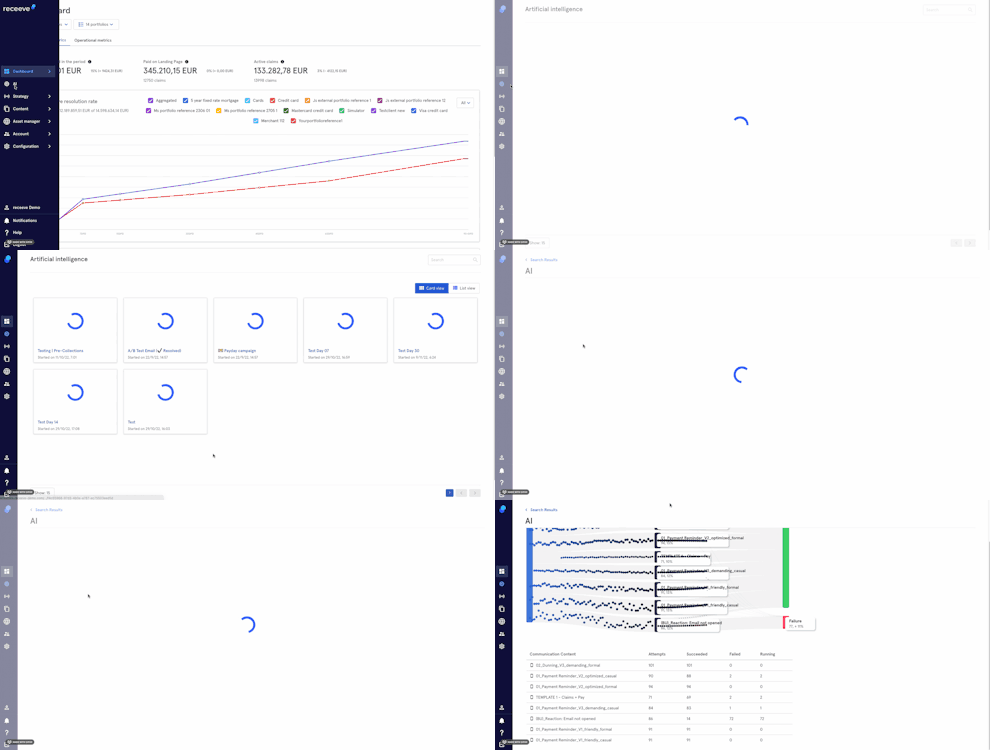
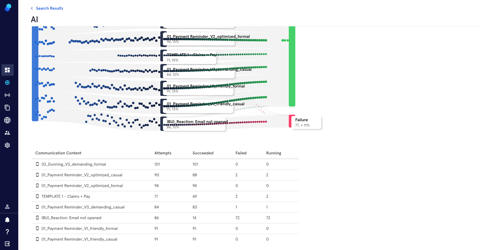
- Here you'll find the communication content, attempts, succeeded, failed and running.