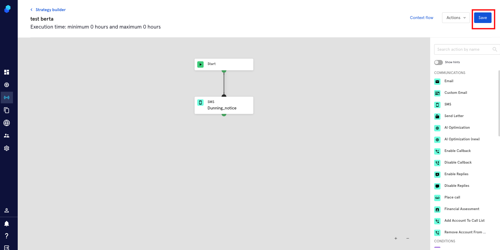
Step Type: Email
Before we start, you'll need to set two items in order for this step to be configured correctly:
Email Design: You need to create an email on Content>Email Builder Locale: This will populate with your default locale. If you prefer to use another locale, please select it here.
Now let's describe the process step by step:
- Go to Strategy>Strategy Builder and select your strategy.
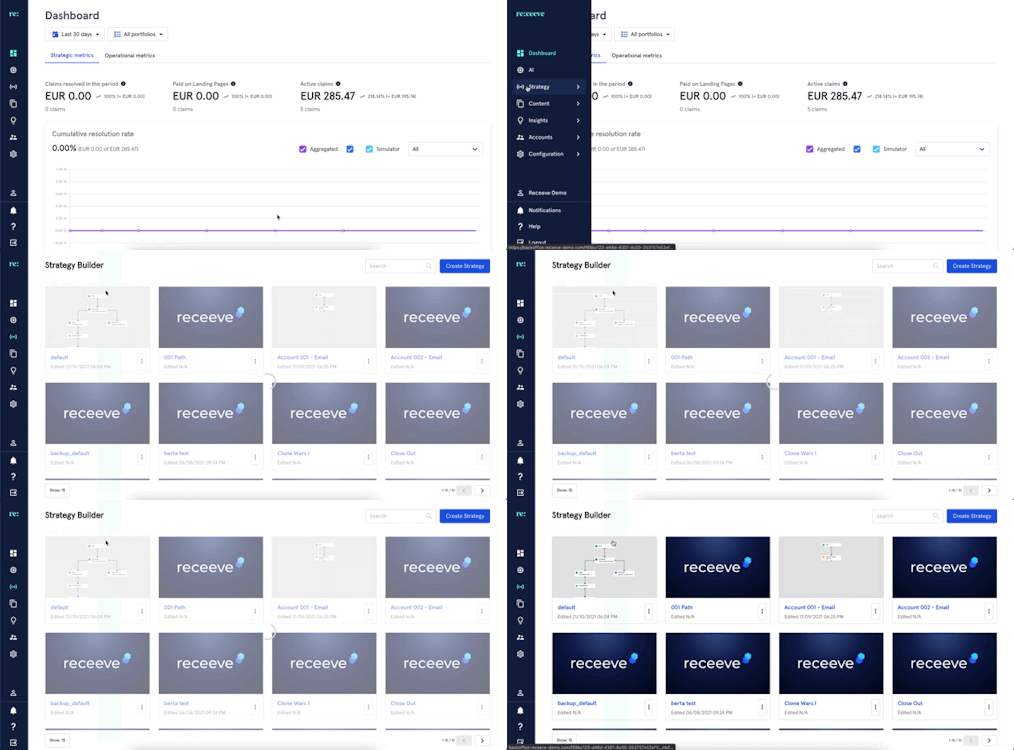
- In the steps library, look for the ‘email’ step under the Communications section (green). Alternatively you can search the step by typing in the search box.

- Click and then drag onto the strategy.
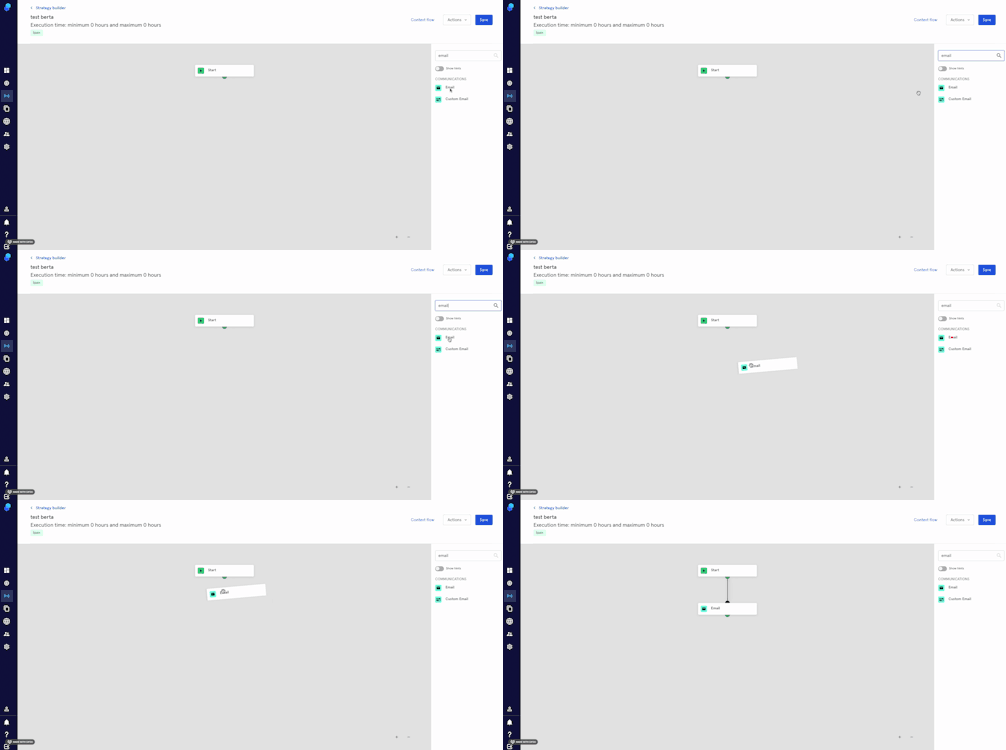
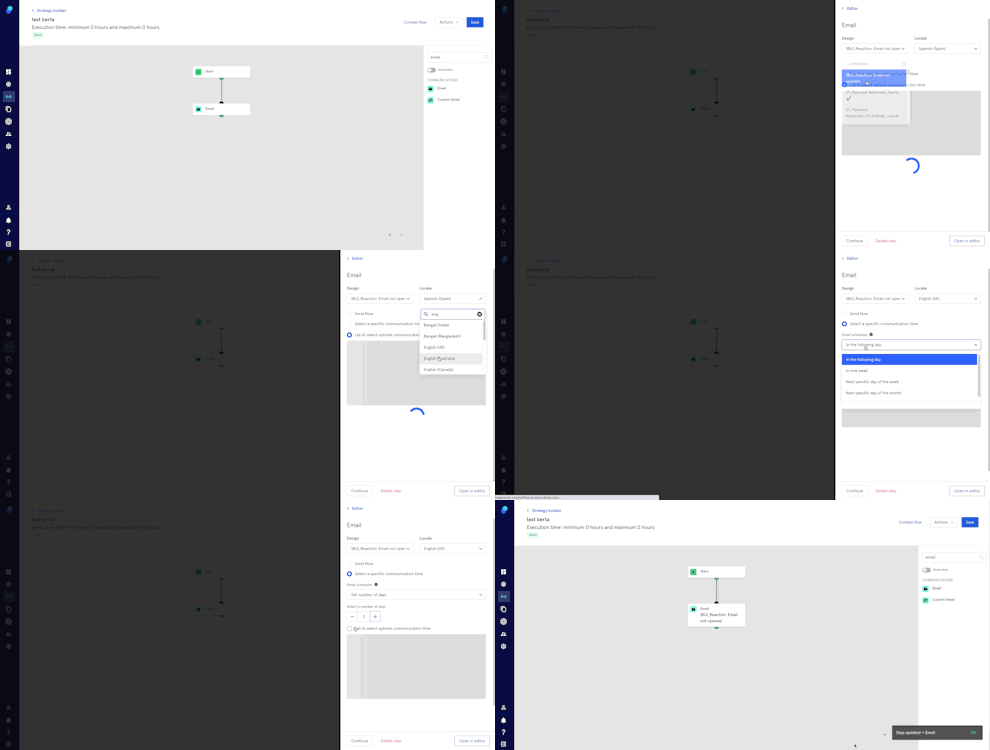
- Now click on the step to configure it.
- Choose design and locale.
- Sending options. You can:
- Send the email now
- Select a specific communication time. You'll be able to choose from the dropdown:
- In the following day
- In one week
- Next specific day of the week
- Next Specific day of the month
- Set number of days
c. Let AI select optimal communication time.
This step will send an email taking into account operational hours. E.g: The step is activated on Saturday at 10 am but your operational hours are Monday to Friday from 9 to 17/5pm. The email will be sent next Monday at 9 am.
- Click 'Continue' to save the step configuration or 'Delete step' to delete it from your strategy.
Remember to Click on Save (top right) to Save your strategy.