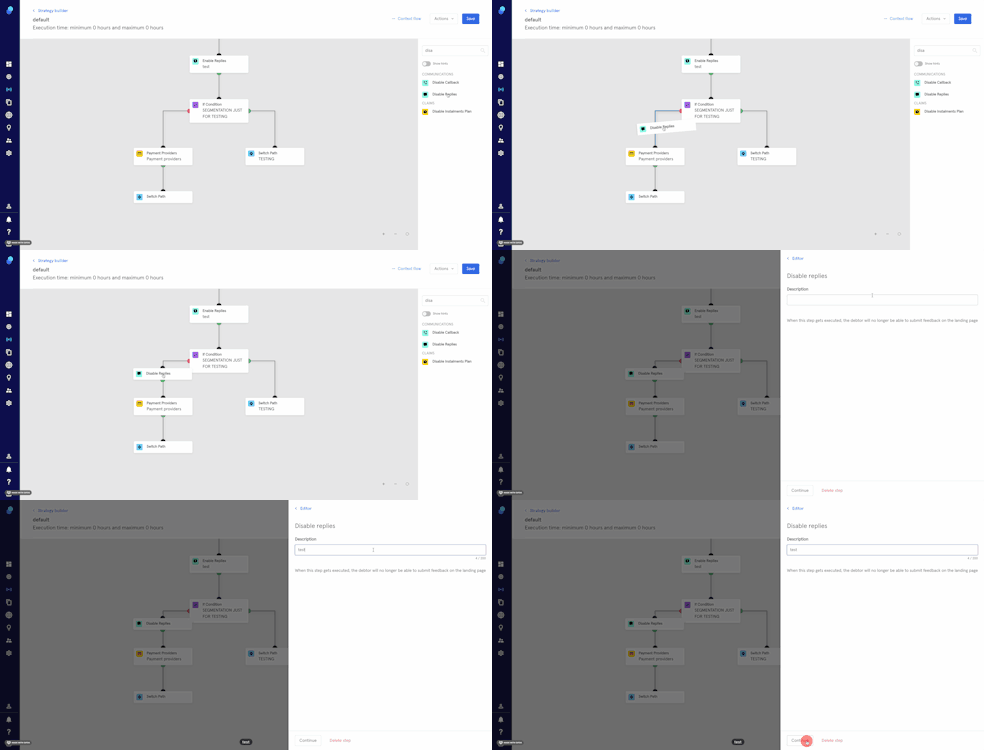
Step Type: Enable/Disable Replies
The 'Enable Replies' and the 'Disable Replies' steps will enable or disable the ability for the consumer to send you feedback while viewing the information on the landing page
We'll use the following example:
You have a setup where your clients are not able to get the reference number correctly because they pay manually, so at the beginning of the default strategy, you add the 'Enable Replies' step. This way, all the claims have the ability to fill out the details of the payment they made.
Replies are not enabled by default in the receeve platform. We suggest you to only use the 'Enable Replies' step under very specific circumstances as in the example described.
'Enable replies' step
- Click on Strategy>Strategy Builder
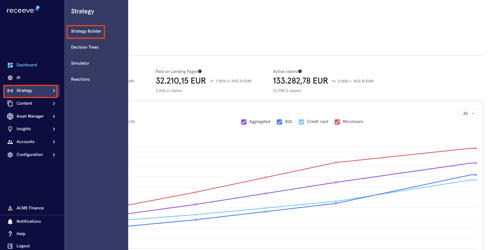
- Go to a Strategy. For this example we'll use 'default' so we'll be enabling replies for all the claims.
- Go to the step library and scroll down to look for the step or use the search box.
- Drag and drop the 'Enable replies' step from the step library into your strategy.
- Add a Description
- Click on 'Continue' to proceed or click on 'delete step' to delete.
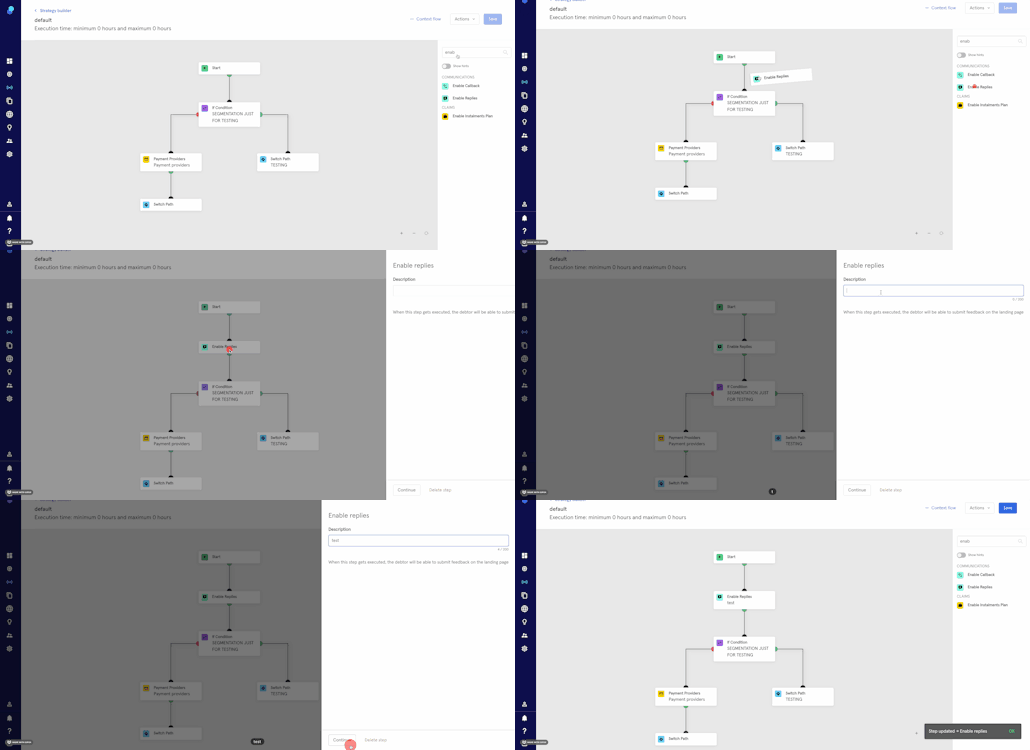
IMPORTANT: A link will appear in the Landing Page so your customer can submit feedback. Please remember you'll need to create a reaction to capture it, otherwise it gets stored in the backend.
'Disable replies' step
We'll follow the steps described in the previous section. In this case you'll drag and drop the 'disable replies' step from the Step Library onto your strategy. Claims going through the red side of the 'if condition' step will no longer be able to submit feedback.