Step type: If Condition
The step
The IF function can easily handle the most common types of segmentation and allows the segmentation of customers based on any number of variables. These include specifically the level of risk and the stage in the collections process (via days of delinquency) as well as any other demographic or behavioral characteristics available. In receeve, you can configure the IF step in the Strategy Builder.
To begin, go to the Strategy menu and click Strategy Builder in the submenu.
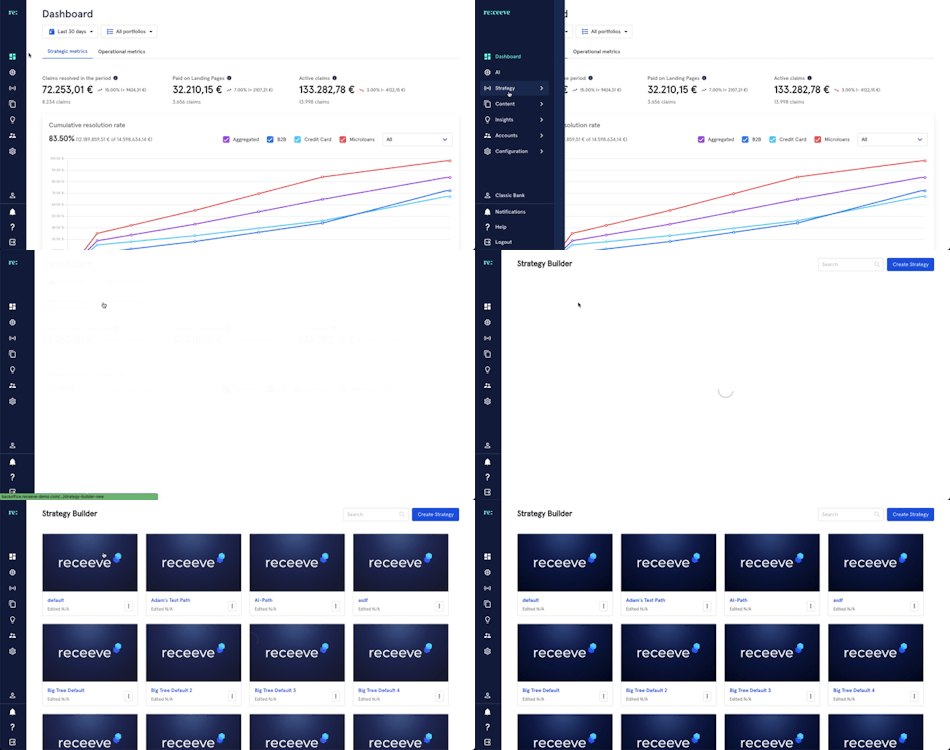
We start by dragging the IF condition step from the step library over to the strategy we are creating or updating. The IF condition is a step under the Conditions section with a purple color that can be found upon scrolling down the step library.
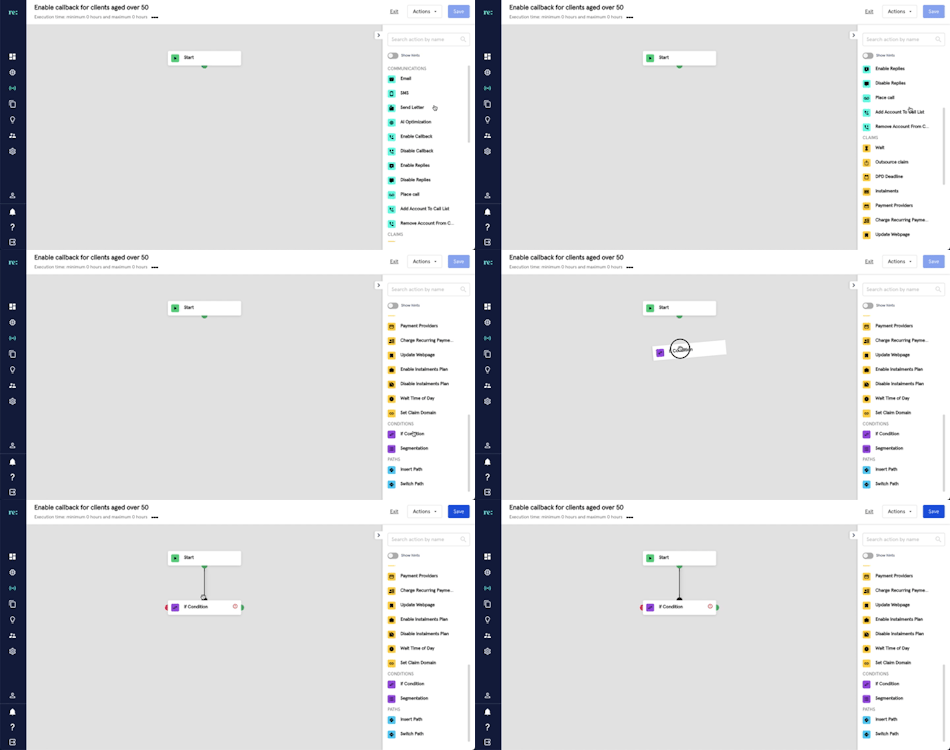
Then, we will add the actual conditions. To do this, follow the steps below.
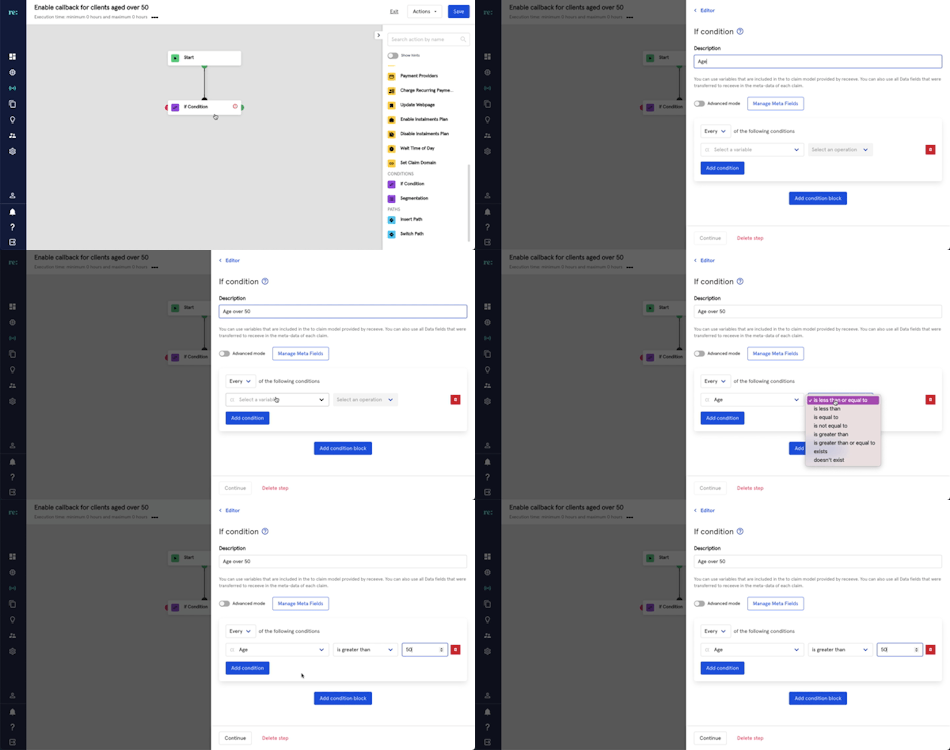
- Click on the step from the Strategy Builder
- Add a description to the IF condition. This could be anything that can help other users understand the purpose of the IF condition.
- Add the conditions:
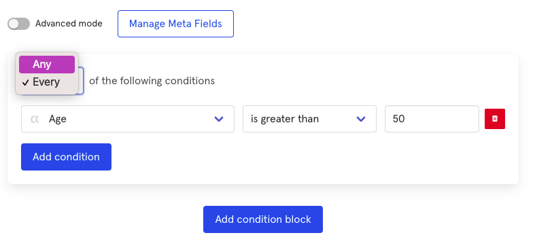
- From the dropdown, select Any or Every of the following conditions. We can choose whether we need every condition to be satisfied or just any of them will suffice. This is done for every condition block.
-
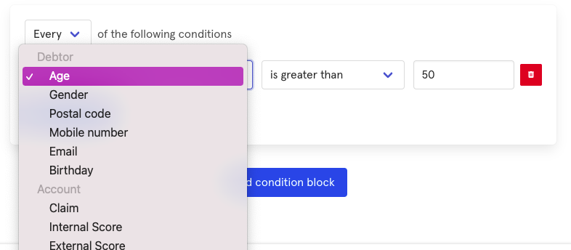
- For the first condition, we select a variable from these options:
-
-
- Debtor
- Age
- Gender
- Postal Code
- Mobile Number
- Birthday
- Claim
- Amount
- Total fees
- Due date
- Days Past Due
- Communication
- Last debtor email opened date
- Payment
- Last settled payment date
- Last cancelled payment date
- Last disputed payment date
- Last processing payment date
- Date
- Today's date
- Day of the month
- Day of the week
- Meta
- Relative
- Debtor
- Then we select an operation. Each variable may vary from different operations:
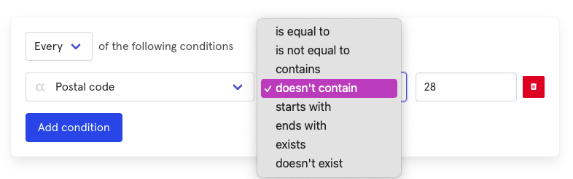
- Variables related to numbers or letters like Age, Postal Code, Mobile Number, Amount, Total Fees, and Day of the Month, have the following operations followed by a number or text field:
- is equal to
- is not equal to
- contains
- doesn't contain
- starts with
- ends with
- exists
- doesn't exist
- Variables related to numbers or letters like Age, Postal Code, Mobile Number, Amount, Total Fees, and Day of the Month, have the following operations followed by a number or text field:
-
-
-
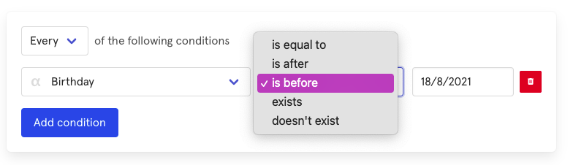
- Variables related to dates like Birthday, Due Date, Days Past Due, Last debtor email opened date, Last settled/cancelled/disputed/processing payment date, and Today’s date have the following operations followed by a calendar:
- is equal to
- is after
- is before
- exists
- doesn't exist
- Variables related to dates like Birthday, Due Date, Days Past Due, Last debtor email opened date, Last settled/cancelled/disputed/processing payment date, and Today’s date have the following operations followed by a calendar:
-
-
-
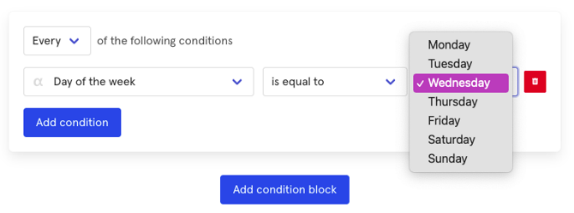
- Variables like Gender or Day of the Week will have the same operations as variables related to numbers or letters (a) but will have specific dropdowns:
- Gender - Male or Female
- Day of theWeek - Monday, Tuesday, etc.
- Variables like Gender or Day of the Week will have the same operations as variables related to numbers or letters (a) but will have specific dropdowns:
-
-
-
- Meta variables are configured through the Manage Meta Fields button. When clicked, it will display a modal where you can add, edit, or delete meta field
- There's an advanced mode toggle available . Please check the supported variables here.
-
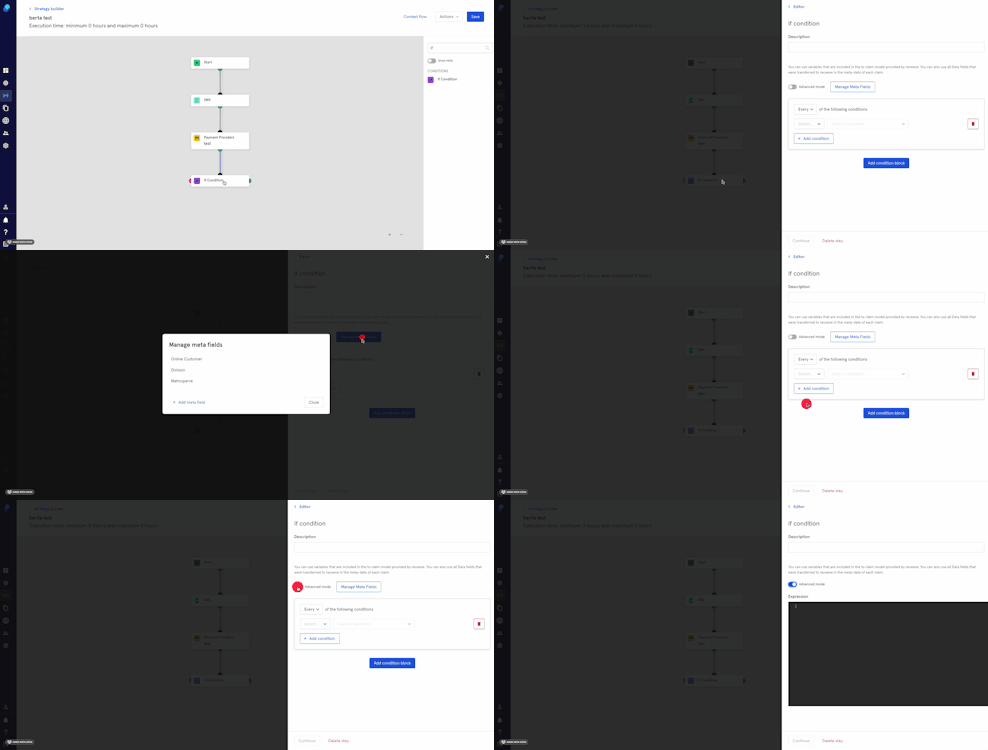
- Please note that we can add multiple condition blocks. Each block can contain one or more conditions.
- Lastly, we click Continue at the bottom of the page to continue with our Strategy. Alternatively, we can Delete Step.
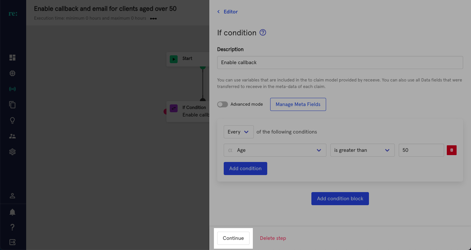
Example
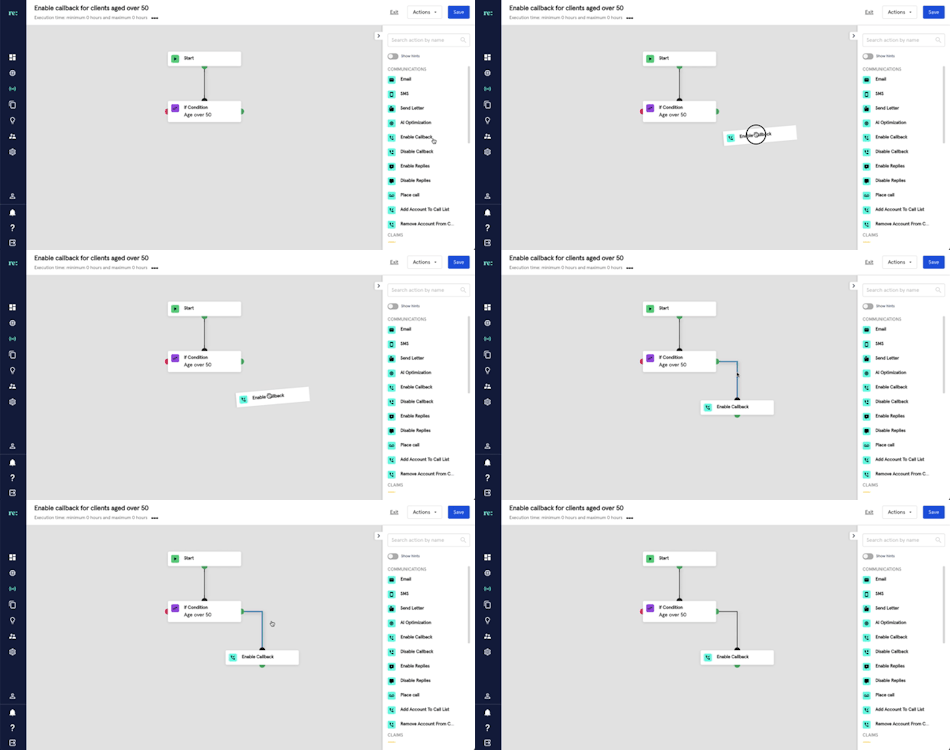
We'll enable callbacks for claims that fulfill the conditions of the if step (age over 50, green side)
For those claims not fulfilling the 'if condition', we'll send an SMS (red).
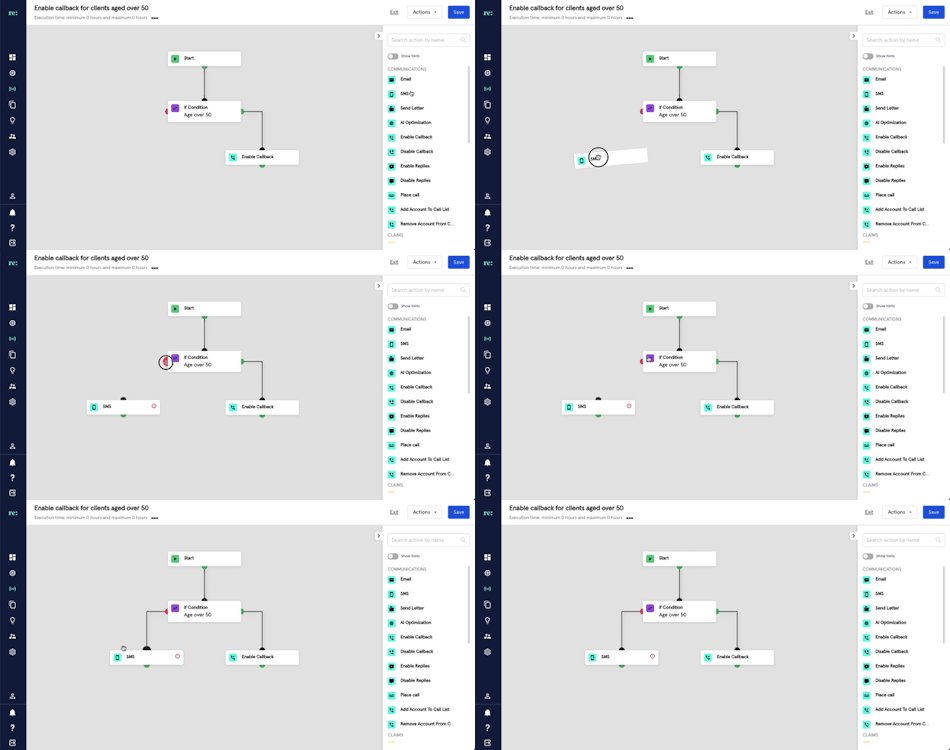
You will notice an exclamation point on the top right of a step when additional information is needed. Make sure you add these details to be able to save the Strategy.