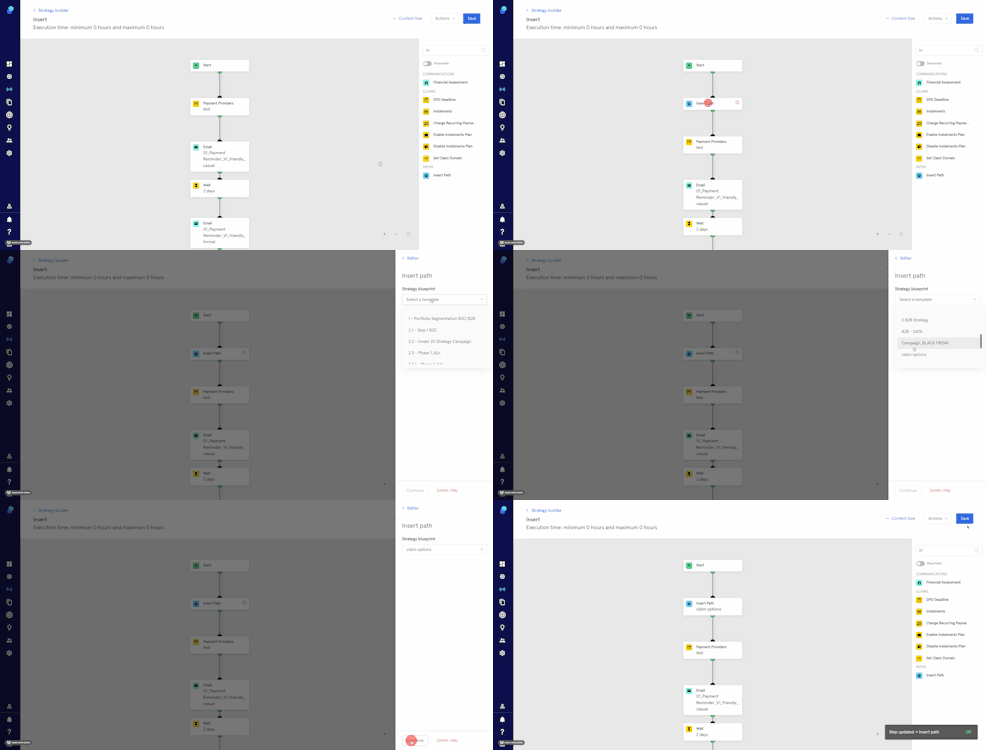
Step Type: Insert Path
Inserting a path and its advantages
Inserting a path into the journey can bring you several advantages. You can create smaller paths that take care of settings like payment methods, installments, or communication settings. You can use this path in multiple locations if you would like. For example:
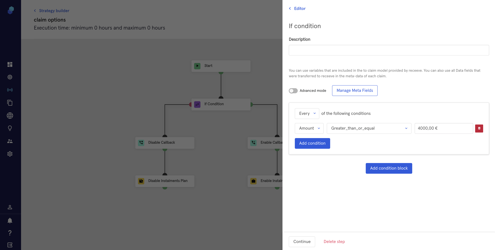
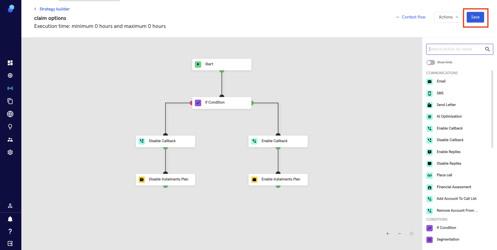
You'd like to maintain self-service as the priority for lower-value loans or debts, but you'd like to allow customers with loans/debts over 4000€ to schedule calls and convert to installments. To do this, you can create a path called 'Claim Options' that will segment based upon the amount so only claims over 4000€ will have the callback and installment options enabled.
You can go to the default strategy and place an Insert Path step into it. It will execute "Claim Options at Start" to come back to the default strategy afterwards.
Creating the step
To start, we'll proceed the same way we do when creating a new strategy
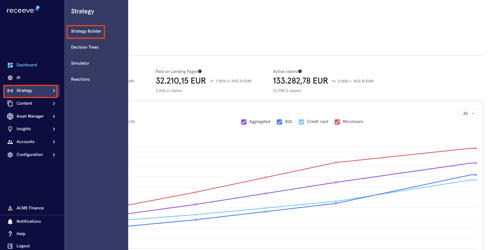
- Click on Strategy>Strategy Builder
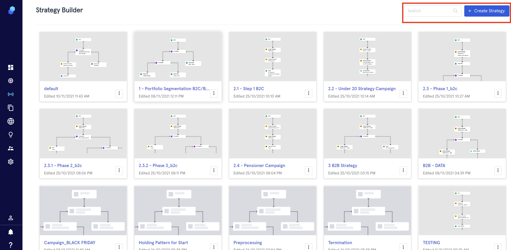
- Click on 'Create Strategy'
- Name your strategy
- Click on 'Continue'
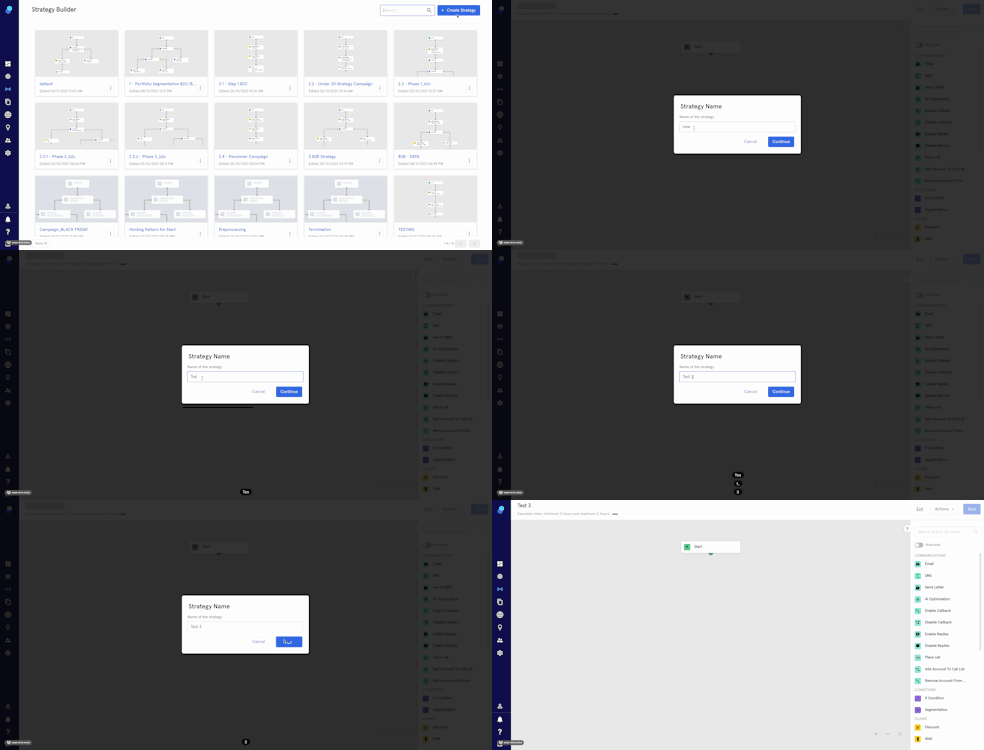
- Drag and drop the steps (following the example, we'll use an 'If Condition' step to segment so only claims over 4000€ will have the 'Enable Callback' and 'Enable Instalments Plan' options enabled )
- Click on 'Save'
How to insert a path
We'll be inserting a strategy (path) within a strategy. To do this, let's follow our example:
- Open the strategy where you'd like to insert this path
- Drag and drop the 'insert path' step
- Click on the step and choose the path you'll be inserting (in this case 'Claim Options')
- Click on 'Continue' to save changes within the step
- Click 'Save' (top right) to save the strategy