Step type - Outsource Claim
The ‘Outsource Claim’ step will allow you to outsource a Claim/Account to a specific Target Partner/Partners (DCA's).
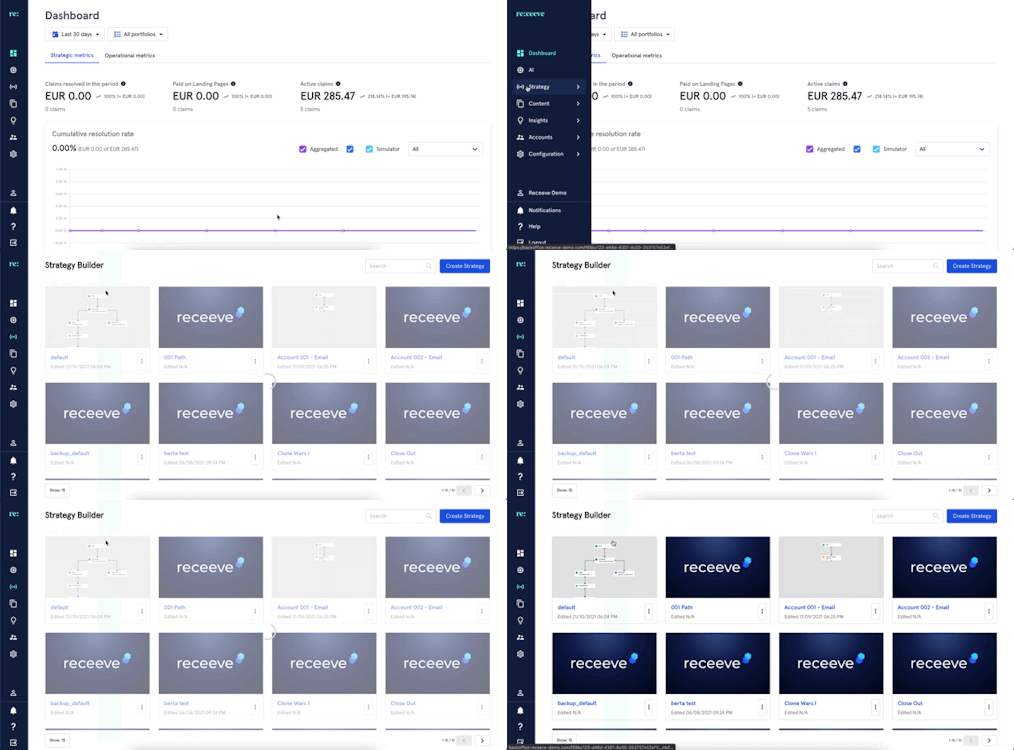
To start, go to 'Strategy' in the main menu and then click on 'Strategy Builder'.
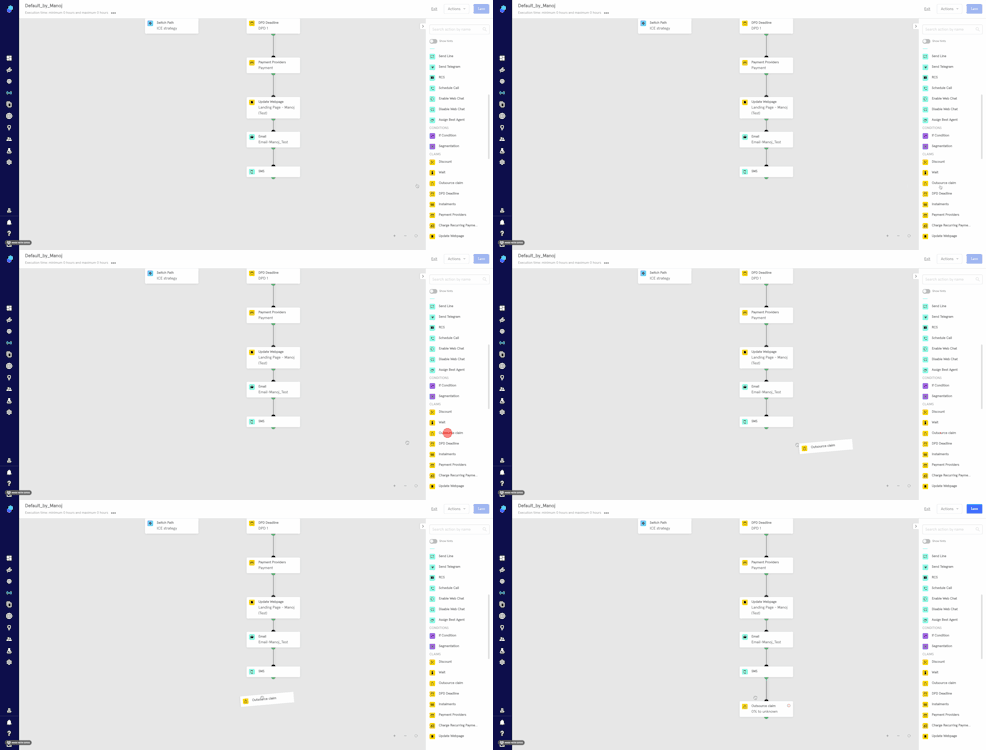
In the step library, locate ‘Outsource Claim’ under the Claims section (Yellow) and then drag it to the Strategy Builder.
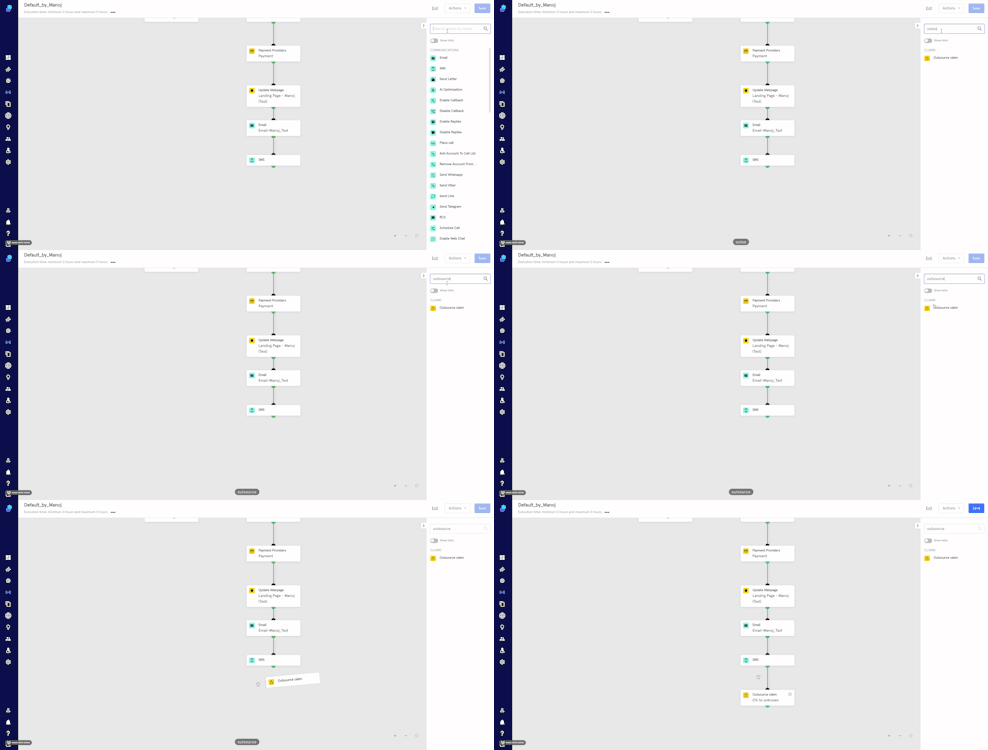
You may also look for the 'Outsource Claim' step by typing it at the search bar.
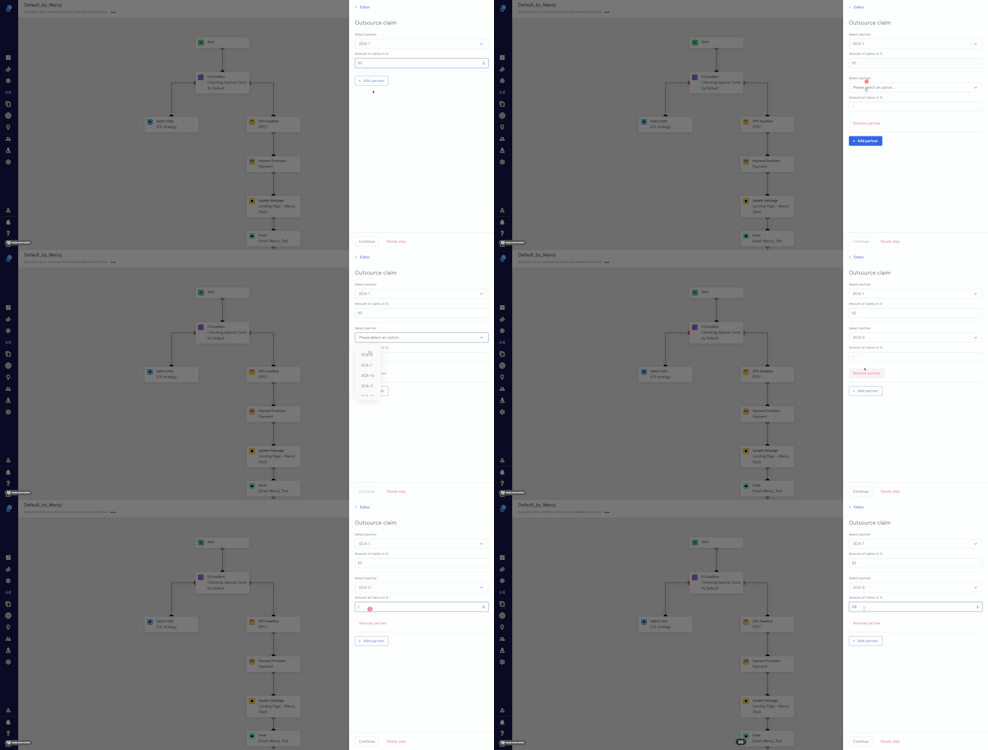
Now let's click on the step and:
- Select Partner
- Introduce amount of claims in %
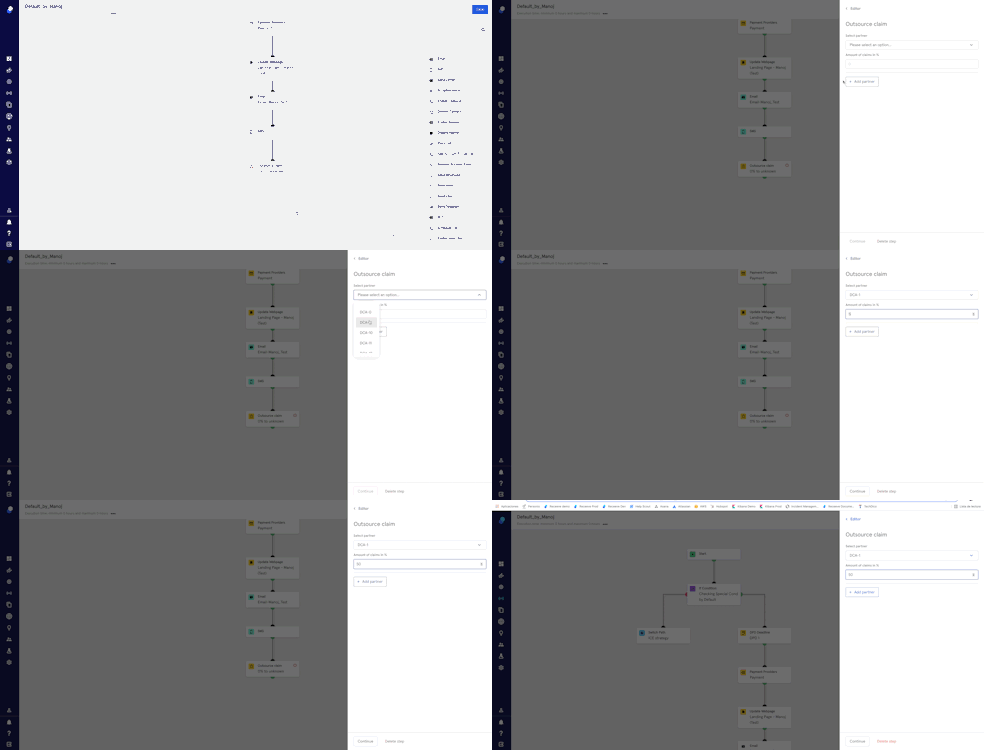
- We can add more partners by clicking on the button 'Add Partner' and repeating steps 1 and 2.
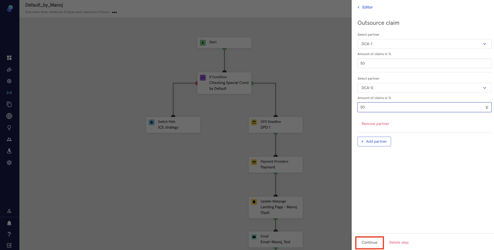
- To save the details of the 'Outsource Claim' step, click on 'Continue'.
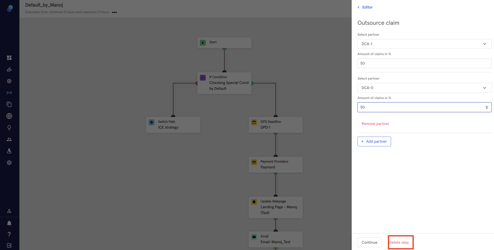
- To delete the step, click on the 'Delete step' button.
- Files will be generated for the selected partner/partners in the 'Partners' page within the Asset Manager as explained in this article.
Please remember that you'll need to save all the changes you've made in your current strategy by clicking the 'Save' button on the top right (Blue)