Strategy Builder - Create Strategy
Start creating your Strategy
To start creating a Strategy, go to 'Strategy' in the main menu and then click on 'Strategy Builder'.
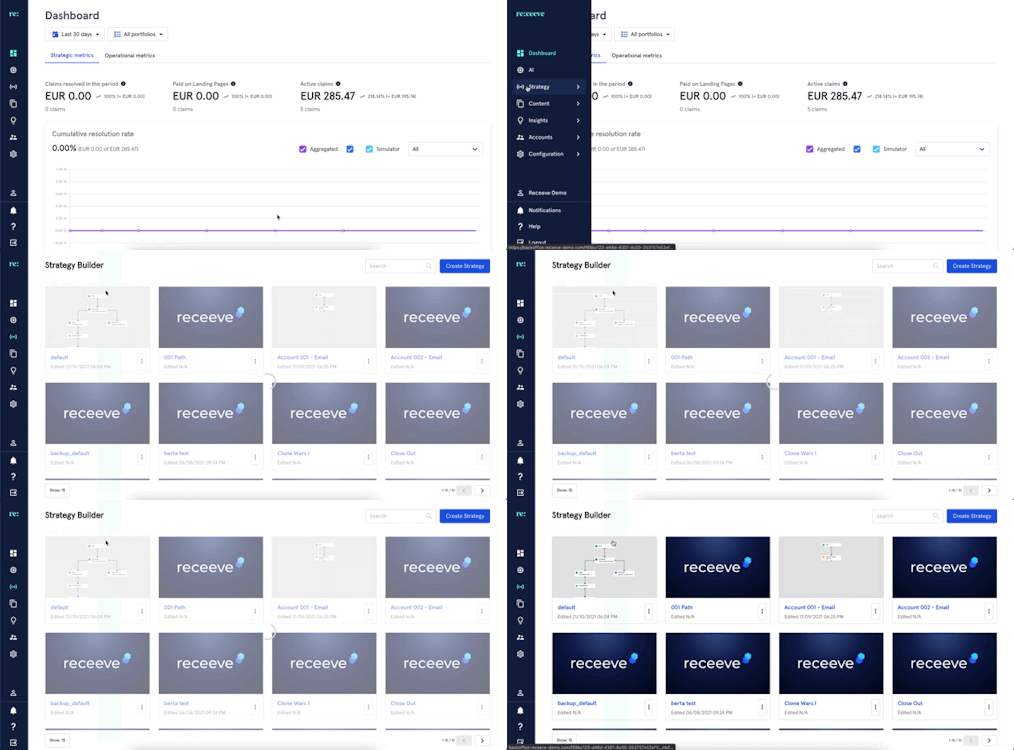
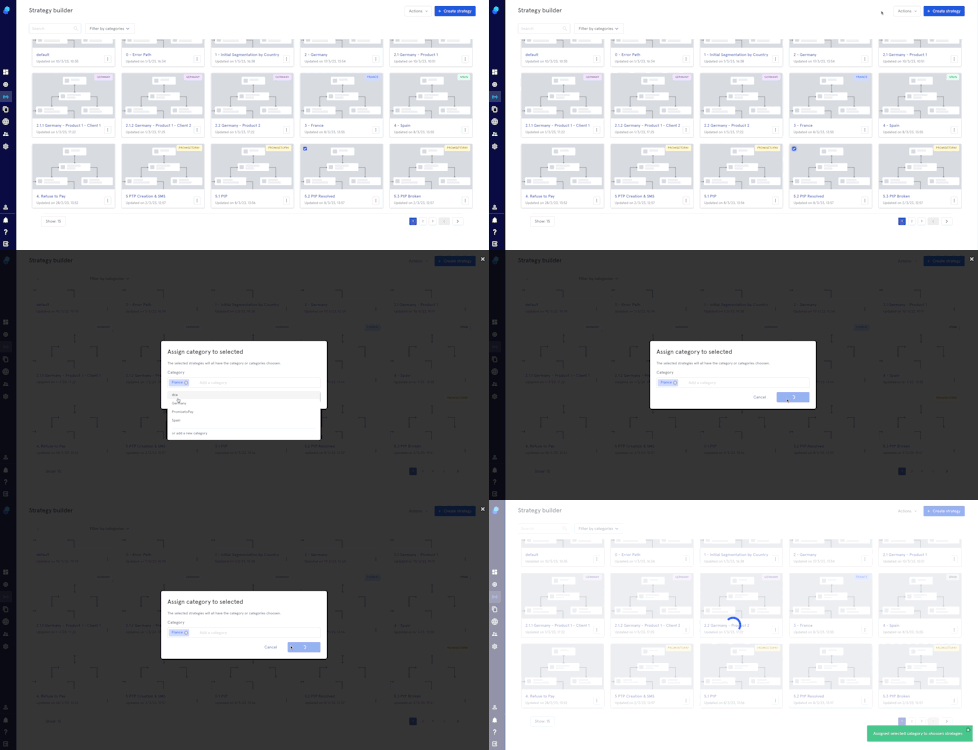
By clicking on the 3 dots you can:
- Clone
- Rename
- Delete
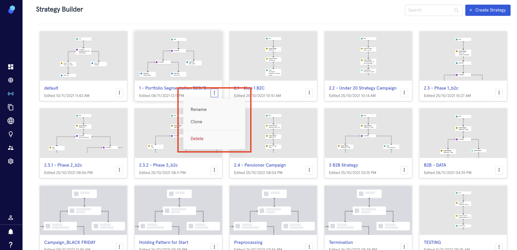
On the top left you'll be able to:
- Search for and existing Strategy
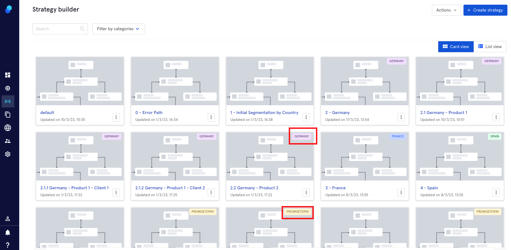
- Filter by categories. Please note that the strategies assigned to a category will have a tag on display.
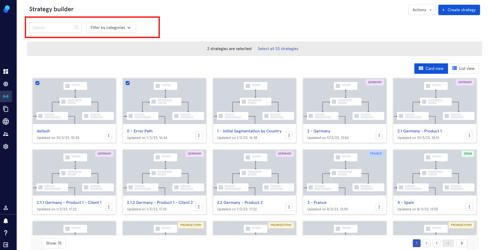
On the top right you'll find:
- The actions menu where you can:
a. Assign category to selected
b. Deselect all
2. The 'Create Strategy' button
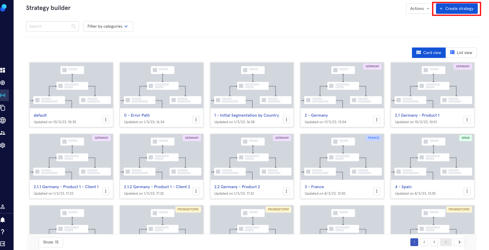
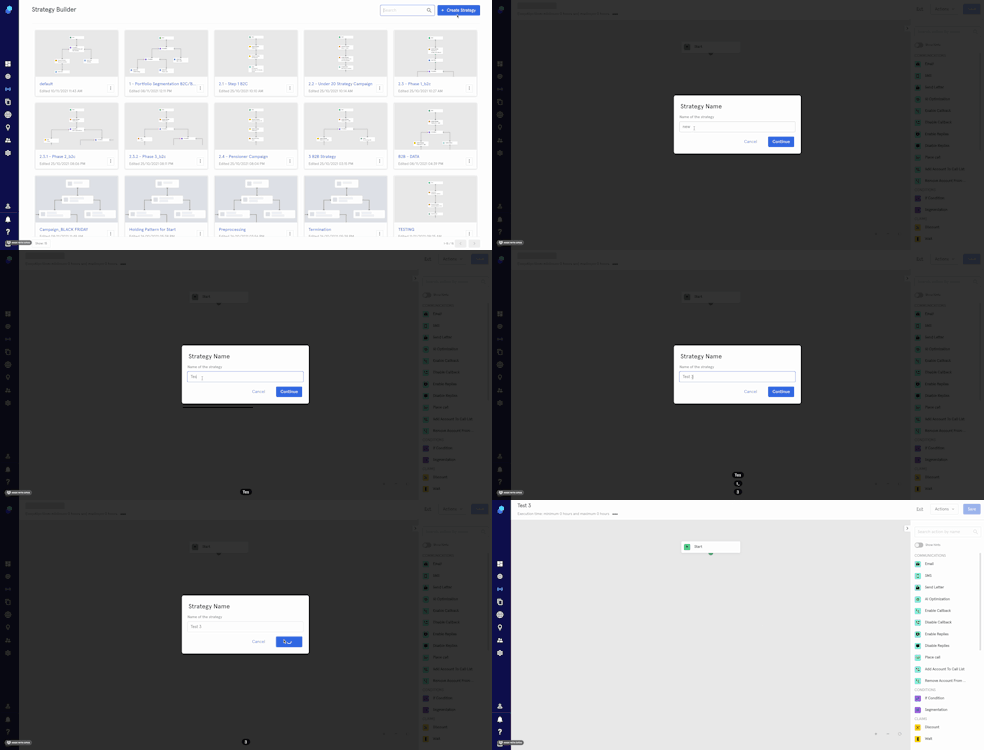
Create Strategy
- Click on the 'Create Strategy' button
- Name your strategy
- Click on Continue
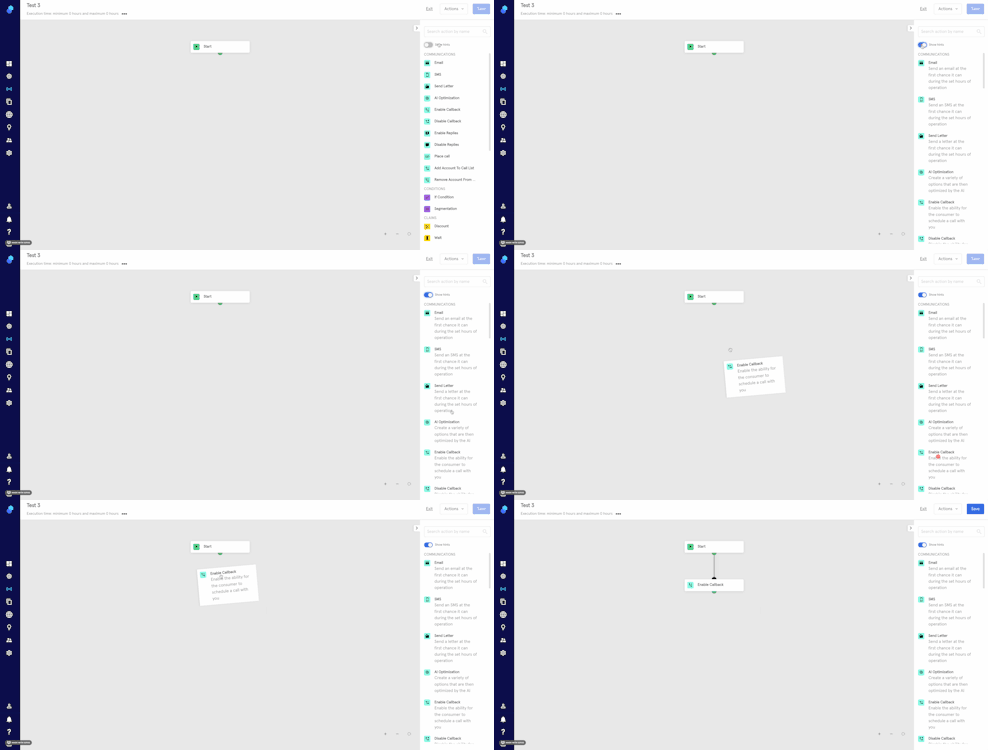
- Use the toggle switch to show hints if needed .
- You can start adding steps to your strategy.
Adding a step is as simple as dragging and dropping. Feel free to drag a step anywhere you would like. We have programmed the interface to take cues from you (that is, it will place the step where you're pointing to). If it is the end of a strategy, you will see the lines connecting automatically, so you can see where the platform understands that you want the step placed.
You can use the same mechanism when moving steps around in order to connect them to a specific part of the strategy.
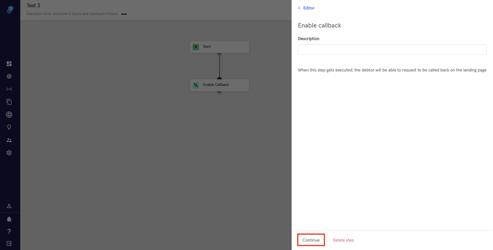
6. Once you've added a new step, click on 'continue' to save the changes within the step.
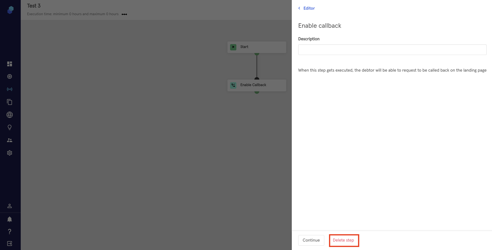
7. or click on 'Delete Step' to delete a specific step within your current strategy.
If you're outside the step modal, please select the step and then click on the 'Delete button'
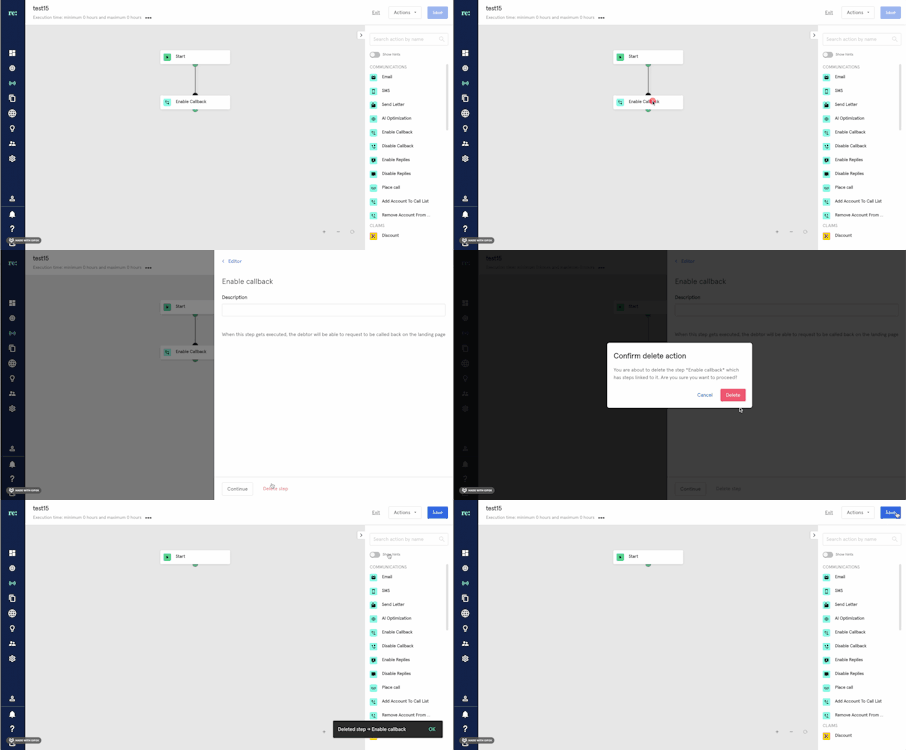
- To save your Strategy (that is, saving all the changes you've made), click on 'Save' (top right)
