AI Account & Claim Assistant
The AI Account & Claim Assistant is an AI-powered chat assistant built into the Account detail and Claim detail pages. It answers the questions collections and support teams ask every day — why is this claim on this strategy?, who changed the debtor's address, and when?, which claims are overdue? — in plain language, citing the events it based each answer on. In Edit mode it can also make a specific, limited set of changes for you.
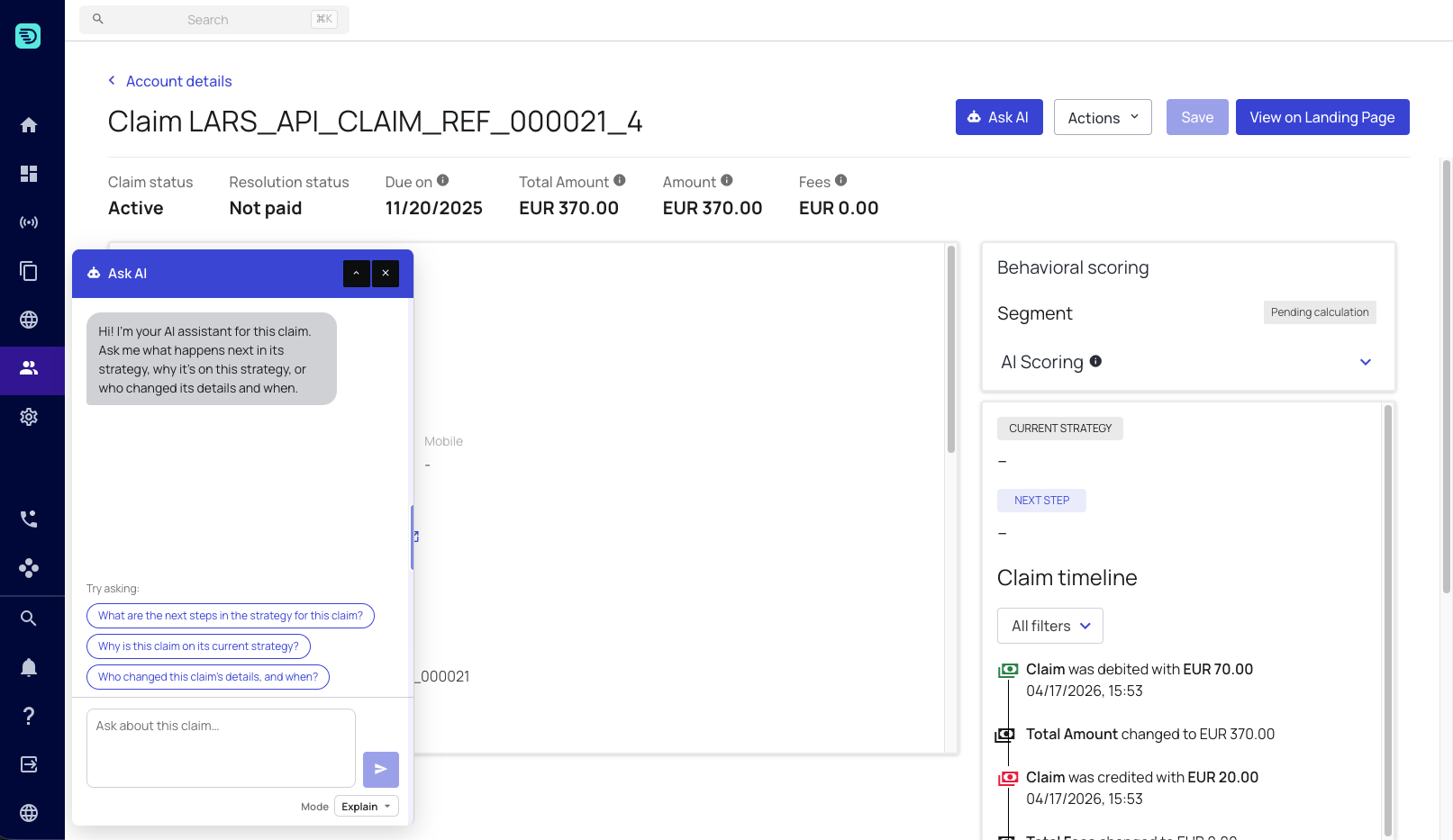
The assistant is rolled out gradually. The Ask AI button appears only when both are true: you are on the latest version of the Account and Claim pages, and your role has the Ask AI permission granted in Role Manager. If you don't see the button, contact your Customer Success Manager or the InDebted team — see Usage limits & availability.
Opening the assistant
- Open an account in Account Management, or a claim in Claim Overview.
- Click Ask AI — in the header on the Account detail page, in the action bar on the Claim detail page.
- The chat panel slides in docked to the left, alongside the page. The record stays visible and usable while the panel is open.
The assistant knows which page you opened it from. On a claim it keeps its answers focused on that claim and its account; on an account it reasons across all of the account's claims.
The two modes
Choose the mode from the Mode selector at the bottom of the panel. The panel always opens in Explain.
| Mode | What it does |
|---|---|
| Explain | Investigates and explains the record — history, attribution, summaries and lookups. Read-only: it never changes anything. |
| Edit | Everything Explain does, plus a small set of changes it can make on your behalf — notes, interactions, metafields, and resolving or reopening a claim. |
Switching modes doesn't clear your conversation. You can investigate a claim in Explain, then switch to Edit and act on what you found.
In Explain mode the assistant has no ability to change anything at all. If you ask it to, it tells you so and suggests switching mode — "Switch to Edit mode to make changes."
Getting started with suggested prompts
When the chat is empty it shows suggested prompts under Try asking:, tailored to the page and the mode you're in. Click one, or type your own question and press Enter.
On the Account page, in Explain mode:
- "Summarise the recent activity on this account."
- "Who last updated the contact details, and when?"
- "Which claims on this account are overdue, and why?"
On the Claim page, in Explain mode:
- "What are the next steps in the strategy for this claim?"
- "Why is this claim on its current strategy?"
- "Who changed this claim's details, and when?"
In Edit mode the suggestions change to reflect what the assistant can do for you, for example "Set a metafield on this account." or "Resolve this claim as paid."
One conversation per account
The conversation is shared across the account and every claim on it. Open the assistant on one claim, ask a question, then move to a sibling claim, and your earlier messages are still there.
The assistant keeps the claims apart internally, so a finding about one claim is never carried onto another. Each answer describes the record you are looking at now.
Referencing other claims
Type @ in the chat box to pull another of the account's claims into the conversation — useful for comparing two claims, or acting on a claim from the account page. See Referencing other claims.
Usage limits
AI usage is rate-limited per team and shown above the chat input. See Usage limits & availability.
In this section
- Investigating a claim — metafield history, field-change attribution, and strategy questions
- Investigating an account — activity summaries, contact attribution, and overdue claims
- Making changes — what the assistant can do for you in Edit mode
- Referencing other claims — using
@mentions - Evidence & grounding — how answers are sourced, and what it means when evidence is missing
- Usage limits & availability
- Giving feedback — the periodic "how helpful was this answer?" prompt
- Safety & good practices