Send a Letter by Email
You can attach one or more of your letter templates to an email template. When the email is sent, each attached letter is created as a PDF for the same claim and attached to the email. The customer receives the email with the letter they would otherwise get by post.
Why use it
When you send the same content by letter and by email, keeping two templates in step is hard: a payment deadline or an amount can end up different in each. An attached letter is created together with the email, from the same claim and at the same moment, so the dates and amounts in the PDF always match the email.
Before you start
- The feature is enabled per account. If you don't see the Attached letters step in the Email Builder, contact your Customer Success Manager.
- You need a letter template. Create it in the Letter Builder as usual. The attached PDF is the same letter you would send by post, with the same layout and legal text.
- Check the letter's placeholders. The letter is filled in with the claim's data, the same way as when it is posted. If a placeholder has no value for a claim (for example, the customer's city is missing), the letter can't be created, and the email is not sent. See What happens if the letter can't be created.
Attach a letter to an email
-
Go to Content > Email Builder and open the email you want to send the letter with (or create a new one).
-
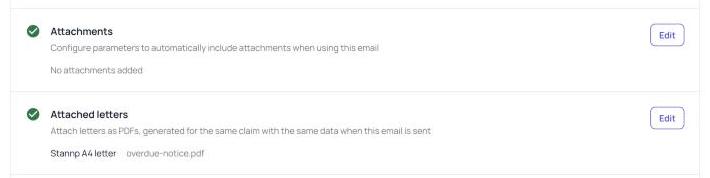
Find the Attached letters step and click Edit.
-
Click Attach a letter.
-
In Letter, choose the letter template to attach.
-
In File name, check the name of the PDF as the customer will see it. It is filled in from the letter's name, and you can change it. It must end in
.pdf, and each attached letter needs its own file name.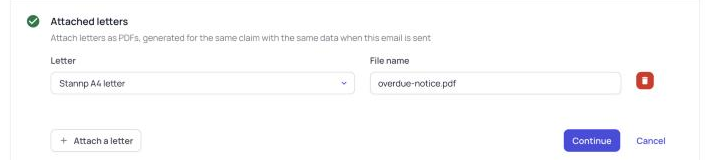
-
To attach another letter, click Attach a letter again. You can attach up to 5 letters to one email.
-
Click Continue, then Save to save the email.
To stop attaching a letter, open the step again, click the bin icon next to it, click Continue and Save.
The Attached letters step is separate from the Attachments step. Attachments adds files you have already uploaded to an account, claim or product, such as an invoice. Attached letters creates a new PDF from a letter template each time the email is sent.
What the customer receives
Each time the email is sent, the customer receives:
- the email, as you designed it, and
- one PDF for each attached letter, named with the file name you chose.
Each letter is created for the claim the email is about, in the same language as the email, with the same data the email uses. It is the same PDF you would get if you sent that letter by post on that day.
No letter is posted. This is an email with a PDF attached: it is sent, counted and reported as an email, not as a letter.
See the letter that was sent
Agents can open the letter a customer received with an email:
- Claim page: in the claim timeline, click the eye icon next to "Email … was sent", then click N attachments and the letter's file name. See Claim Page.
- Communication center: on the account, open the Communication center tab, expand the email and click See N attachments. See Communication Center.
What happens if the letter can't be created
If one of the attached letters can't be created, the email is not sent at all. An email never goes out without its attached letters.
The most common reason is missing data: the letter uses a placeholder that has no value for that claim, such as the customer's address or city. Fix the claim's data, or change the letter so it doesn't need that value, and send the email again.
Testing
Send test email in the Email Builder sends the email content only, without the attached letters. To see the email with its PDFs, send it to a test claim whose customer email address is one you can read.
FAQ
Can I attach a letter to an SMS or a WhatsApp message?
No. Letters can only be attached to emails.
Can I attach the same letter to several emails?
Yes. Each email chooses its own attached letters, and a letter can be attached to as many emails as you need.
If I change the letter template, do I need to update the email?
No. The letter is created when the email is sent, so the email always attaches the latest version of the letter.