AI Strategy Editor
The AI Strategy Editor is an AI-powered chat assistant built into the Strategy Builder. It lets you understand, validate, and edit your strategy using plain language — no need to click through every step by hand. Ask it to explain what a strategy does, check it for problems, or make changes for you, and it works directly on the strategy you have open on the canvas.
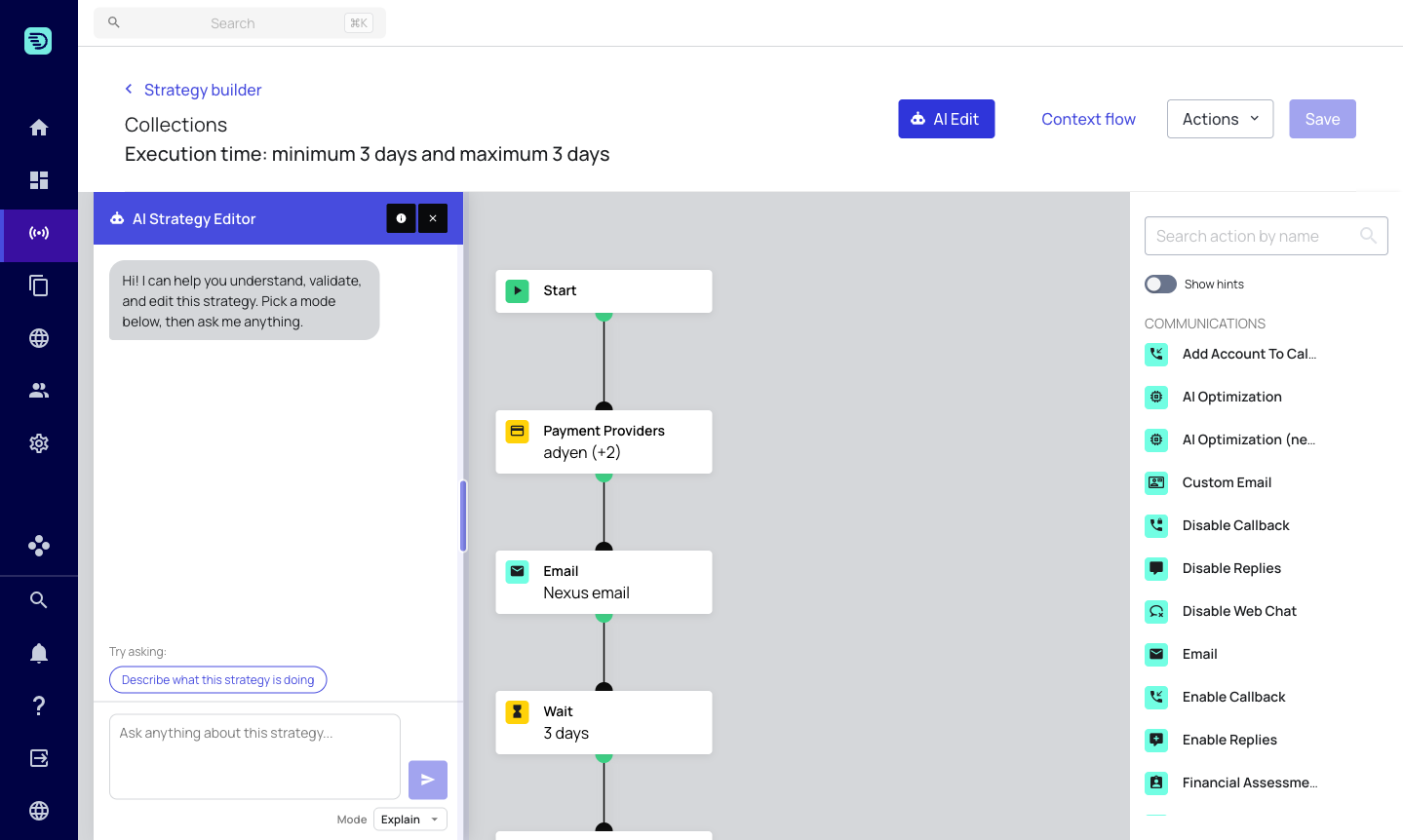
The AI Strategy Editor is rolled out gradually and may need to be enabled for your account. If you don't see the AI Edit button in the Strategy Builder, contact your Customer Success Manager or the InDebted team to have it switched on.
Opening the assistant
- Open a strategy in the Strategy Builder.
- Click the AI Edit button in the top-right of the header.
- The AI Strategy Editor panel slides in alongside the canvas. The strategy stays fully visible and editable while the panel is open.
You can close the panel at any time with the × button — your conversation and any unsaved changes remain until you leave the page.
The three modes
The assistant works in three modes, which you choose from the Mode selector at the bottom of the panel:
| Mode | What it does |
|---|---|
| Explain | Describes what the strategy — or a single step — does, in plain language. Read-only. |
| Validate | Checks the strategy for configuration problems, logic errors, and risky setups. Read-only. |
| Edit | Adds, removes, reconfigures, connects, and rearranges steps based on your instructions. |
Switching modes doesn't clear your conversation — you can explain a strategy, validate it, and then edit it in the same session.
Getting started with suggested prompts
When the panel is empty it shows a suggested prompt to get you going (for example, "Describe what this strategy is doing"). Click it, or type your own request into the box and press Enter.
A few things the assistant can do:
- "Describe what this strategy is doing"
- "Validate this strategy and list any configuration problems"
- "Add an SMS step after the email step"
- "Change the wait step to 7 days"
- "What's the difference between this and @strategy/Early-Stage-Collections?"
How it works on your strategy
The assistant always works on the current state of the strategy on your canvas, including any unsaved changes you have made by hand. When it makes an edit, the change appears immediately on the canvas so you can see exactly what happened.
You can keep editing manually, undo and redo, and combine AI edits with your own changes freely.
AI edits behave exactly like manual edits — they are only persisted when you click Save. See Saving your changes.
Referencing other content
Type @ in the chat box to reference other strategies and content — templates, partners, workflows, landing pages and more — so the assistant can compare strategies, reuse one as a template, or wire the right template into a step. See Referencing strategies & content.
Usage limits
The assistant shows your team's current AI usage above the input box (for example, "AI usage: 5% of your team's hourly limit · resets in ~12 min"). See Usage limits & availability for details.
In this section
- Explain your strategy — understand a strategy or a single step
- Validate your strategy — find configuration and logic problems
- Edit your strategy — make changes with natural language
- Referencing strategies & content — using
@mentions - Saving your changes — how AI edits are persisted
- Usage limits & availability
- Safety & good practices