Edit your email
Edit mode lets you change your email by describing what you want in plain language. The assistant applies the change directly in the editor, where you can see it immediately and keep editing by hand.
Select Edit from the Mode selector, then describe the change you want.
AI edits are not saved automatically. They appear in the editor like any manual edit and are only persisted when you click Save. See Saving your changes.
When you ask for a change, the assistant applies it and confirms what it did.
What you can change
The assistant can add, update, move and remove any of the content blocks in the Email Builder, and adjust their properties. You describe the outcome you want; it makes the change on the canvas.
Text & headings
- "Shorten the intro paragraph but keep the tone"
- "Rewrite this in a friendlier tone"
- "Make the first heading smaller"
It rewrites and restyles text and headings and can change a heading's level.
Styling
- "Make the body text dark grey and a bit larger"
- "Change the page background to light grey and the default font to Arial"
- "Set the link colour to blue and underline links"
You can restyle an individual block (font, size, colour, alignment, line height, padding, borders, radius, letter spacing) or change template-wide body settings (page background, default text colour, content width, default font, link colour and underline).
Buttons
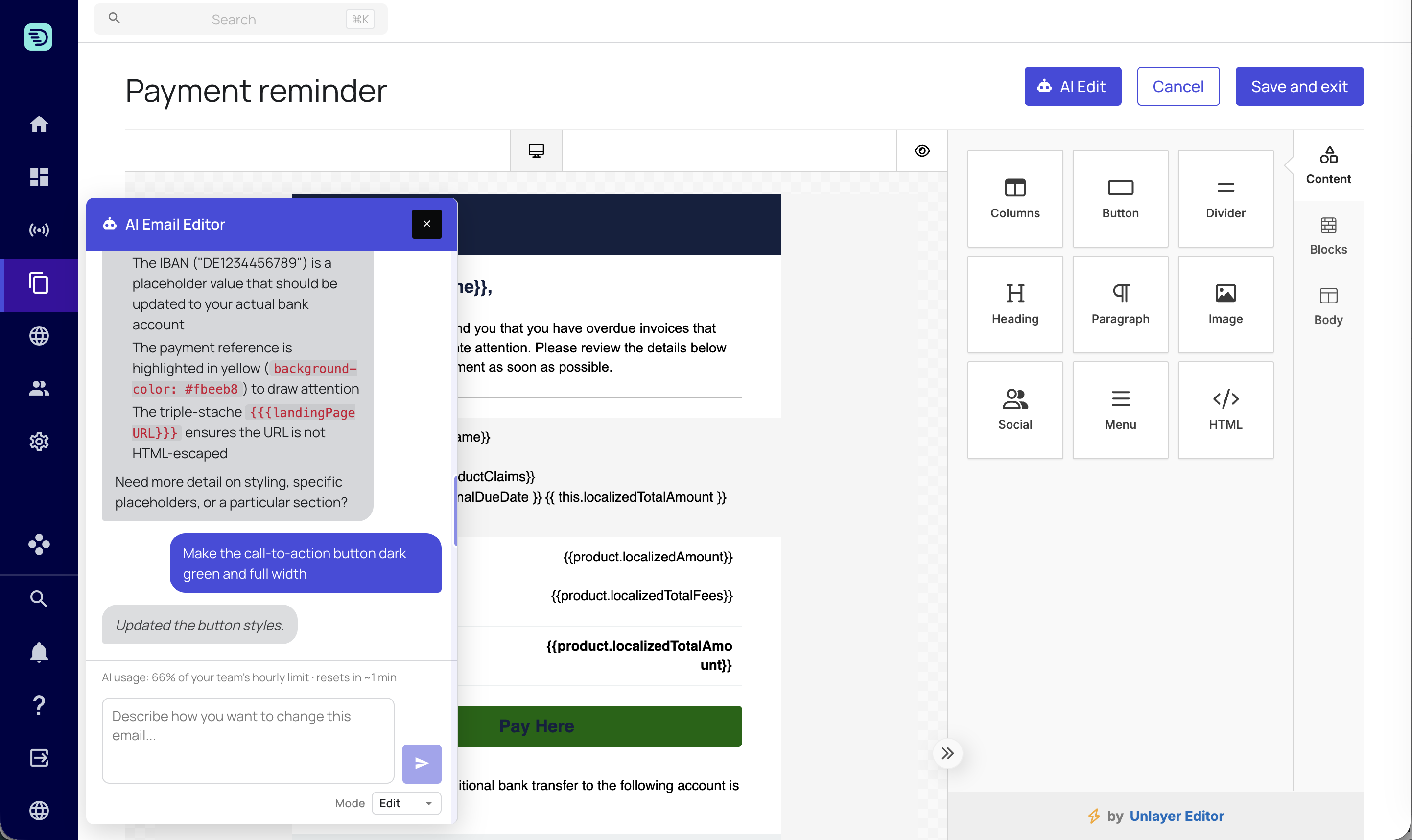
- "Make the call-to-action button green and full width"
- "Point the pay button at https://pay.example.com"
- "Round the button corners and add a border"
You can change a button's label, link, colour, shape, width and border.
Images
- "Add alt text to the header image"
- "Make the logo full width and centre it"
- "Make the image link to the payment page"
You can set an image's alt text, sizing and alignment, and make it clickable. Image sources must be secure (https://) links.
Dividers
- "Add a divider above the footer"
- "Make the divider thicker and dashed"
You can add dividers and adjust their thickness, style, colour, width, padding and alignment.
HTML blocks
- "Add an HTML block below the footer with the small-print line: 'This is an automated payment reminder — please do not reply to this email.'"
- "Add an HTML block with a light-grey bordered box showing the support email support@acme.com and phone +44 20 7946 0000"
You can add and update HTML blocks. For your safety, scripts are stripped out of HTML content.
Menus & social icons
- "Add a navigation menu with Home (https://acme.com), Help (https://acme.com/help) and Contact (https://acme.com/contact) links"
- "Add Facebook and LinkedIn social icons"
- "Centre the social icons and make them larger"
You can add and restyle navigation menus and social icons. When you change the items, provide the complete list you want — the assistant replaces the whole set, so anything you leave out is removed.
Layout & rows
- "Add a two-column row below the header"
- "Add a full-width row with a light background"
You can add rows with 1–4 columns (equal or asymmetric) at a specific position, and set row background and padding.
Making several changes at once
You can describe multiple changes in a single message and the assistant applies them together:
"Make the call-to-action button green, shorten the intro paragraph, and add a divider above the footer."
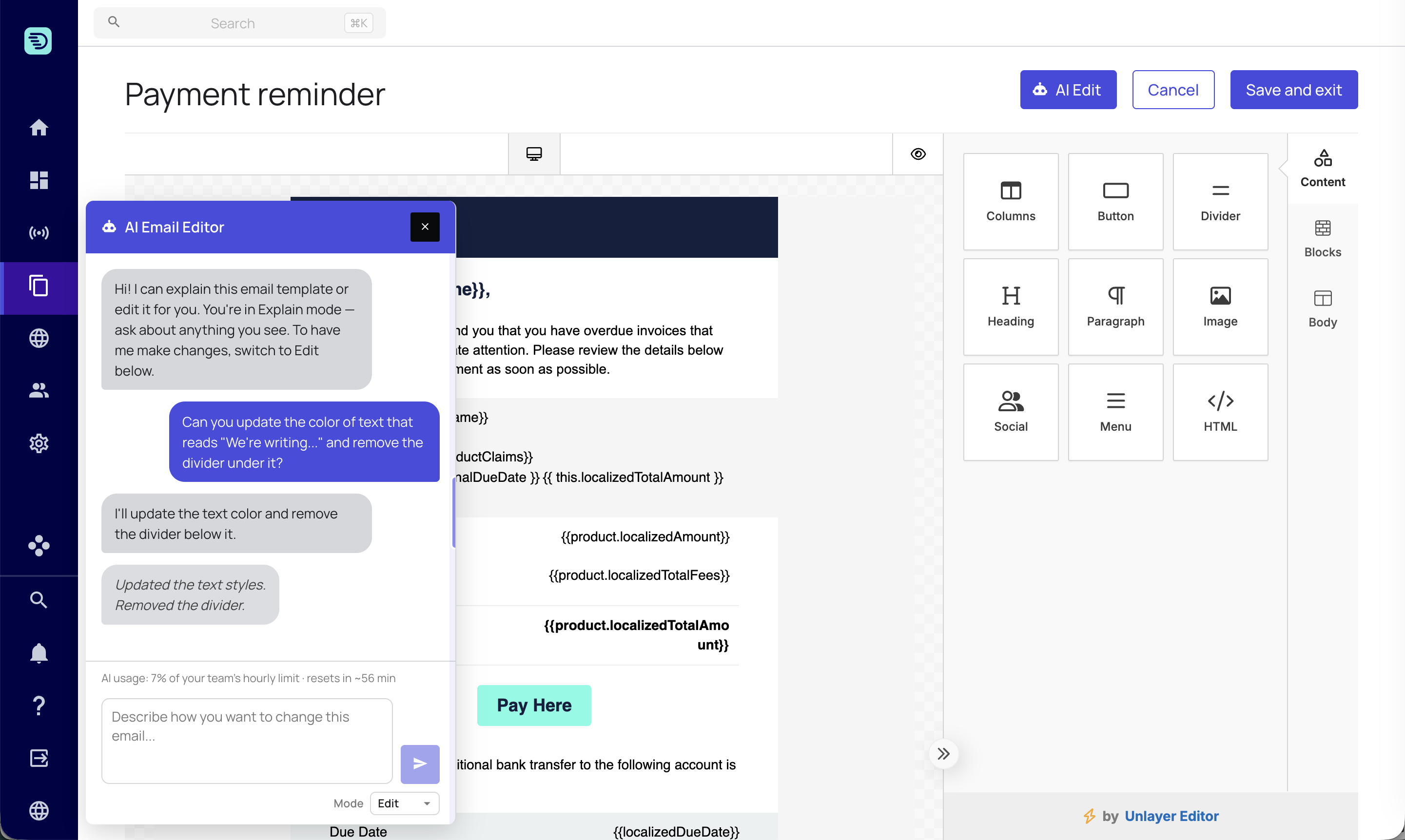
If part of a request can be done and part can't, it applies the valid changes and tells you clearly which it skipped and why.
When the assistant needs more detail
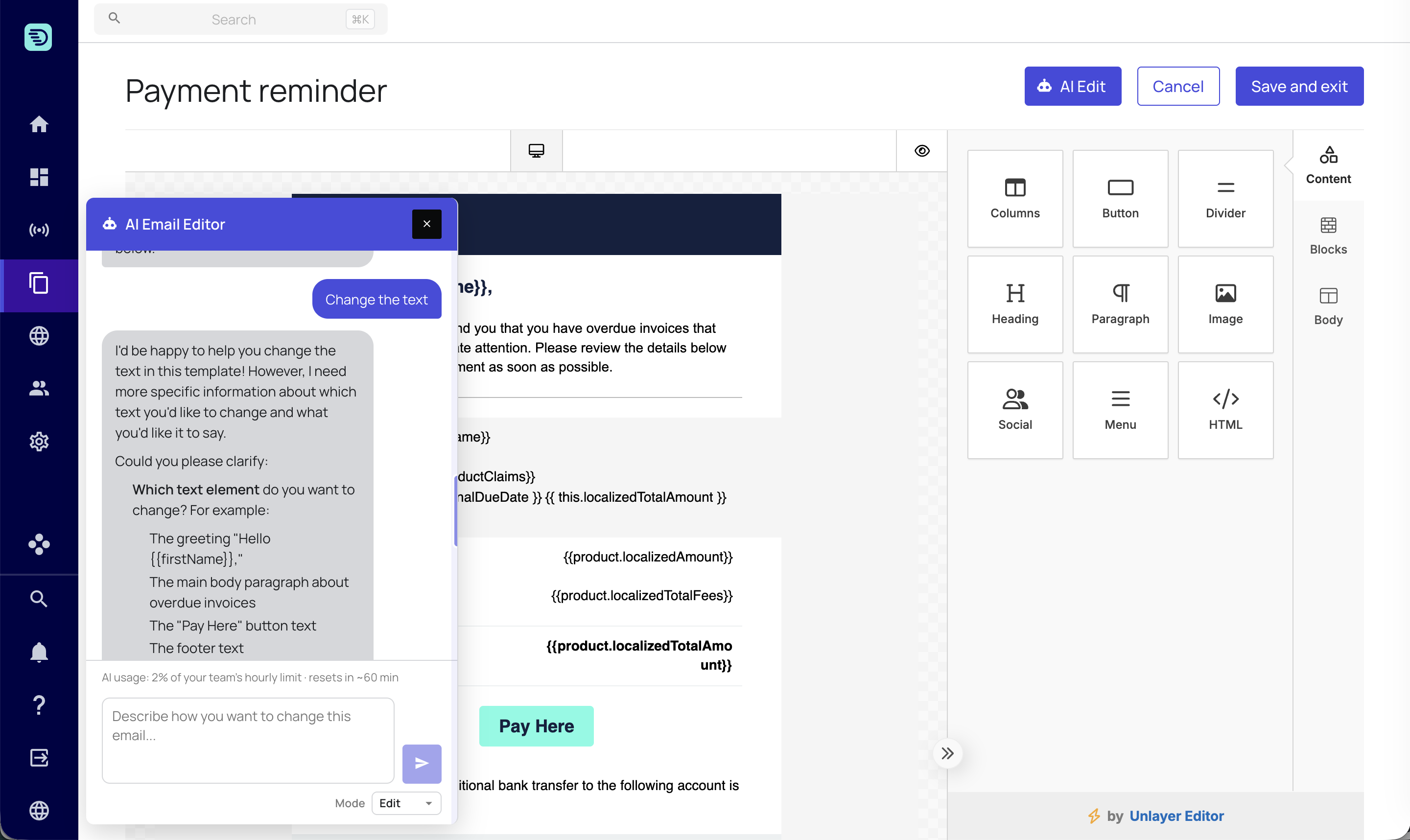
If your request is ambiguous — for example "change the text" when there are several text blocks — the assistant asks a clarifying question instead of guessing. Reply with the detail it asks for and it completes the change.
Working alongside manual edits
AI edits and manual edits live together:
- Changes appear in the editor immediately.
- The assistant applies its edits on top of your unsaved manual changes.
- You can fine-tune an AI-edited block by hand afterwards.