Explain your email
Explain mode helps you understand an email template in plain language. It is read-only — it never changes your template — so it's a safe way to get oriented, review someone else's work, or onboard a new team member.
Select Explain from the Mode selector, then ask your question. Explain is the mode the assistant opens in by default.
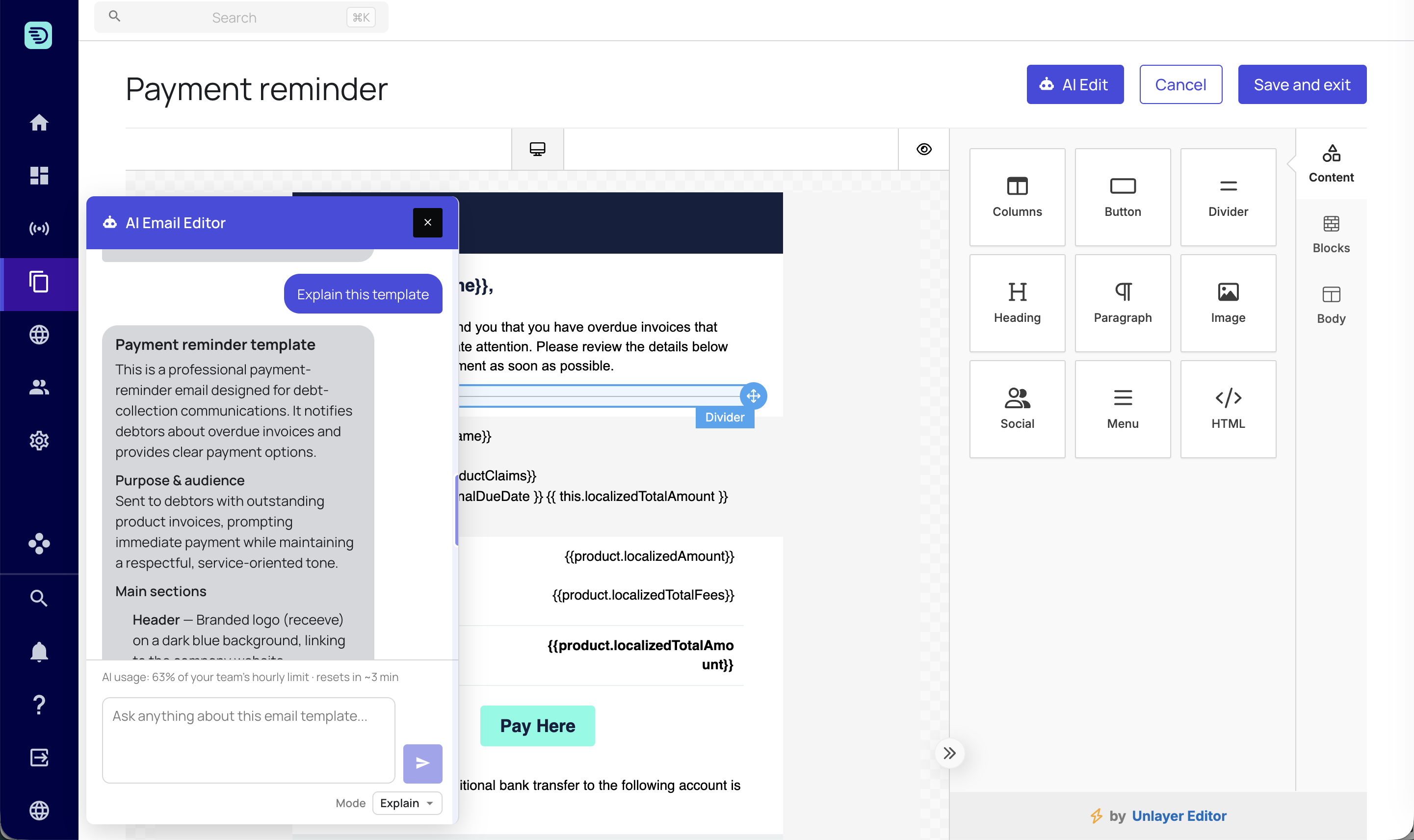
Explain the whole email
Ask the assistant to summarise the template you have open:
- "Explain this template"
- "Walk me through this email"
- "What is this email for, and who is it aimed at?"
It returns a concise overview — the purpose of the email, its sections in the order they appear, and the key placeholders it uses — based on the current state of the editor, including any unsaved changes.
Explain a single block
You can ask about any individual block, referring to it by its type, content or position:
- "What does the pay button link to?"
- "Describe the image near the top"
- "Explain the HTML block in the footer"
The assistant understands the blocks in the Email Builder, including headings and text, buttons, images, dividers, HTML blocks, menus and social icons, as well as the overall layout and body settings (rows, columns, background and default styles).
Ask follow-up questions
The conversation keeps its context, so you can drill in without repeating yourself:
- "And what colour is it?"
- "Is that placeholder correct here?"
- "How does this look on mobile?"
Cross-template explanation & comparison
Using an @mention, you can bring another email template into the conversation to explain or compare it:
- "Explain @Welcome-Email"
- "What's the difference between this template and @Final-Notice?"
The assistant fetches the referenced template and can describe it, or contrast it with the one you have open — for example comparing their subject, tone, structure and buttons. It answers from the mentioned template's real content without blending the two, and it never modifies the template you referenced.
Answers in your language
The assistant replies in the language you write in. Ask in German, Spanish, Dutch or English and you'll get the explanation back in the same language.
Explain mode is a great first step before editing. Ask the assistant to describe a template, confirm your understanding, then switch to Edit mode to make changes.